
Windows has a lovely tool that's widely used called Snipping Tool, this is used to to take screen shots of particular things on the screen rather than the whole screen, to accomplish the same thing on an iPad follow these steps:
- With what you want to snip on screen press and hold the Home and Power button to take a normal screen shot
- This should provide a preview in the bottom left of your screen
- Select the preview with your finger, you should be presented with a screen like this:
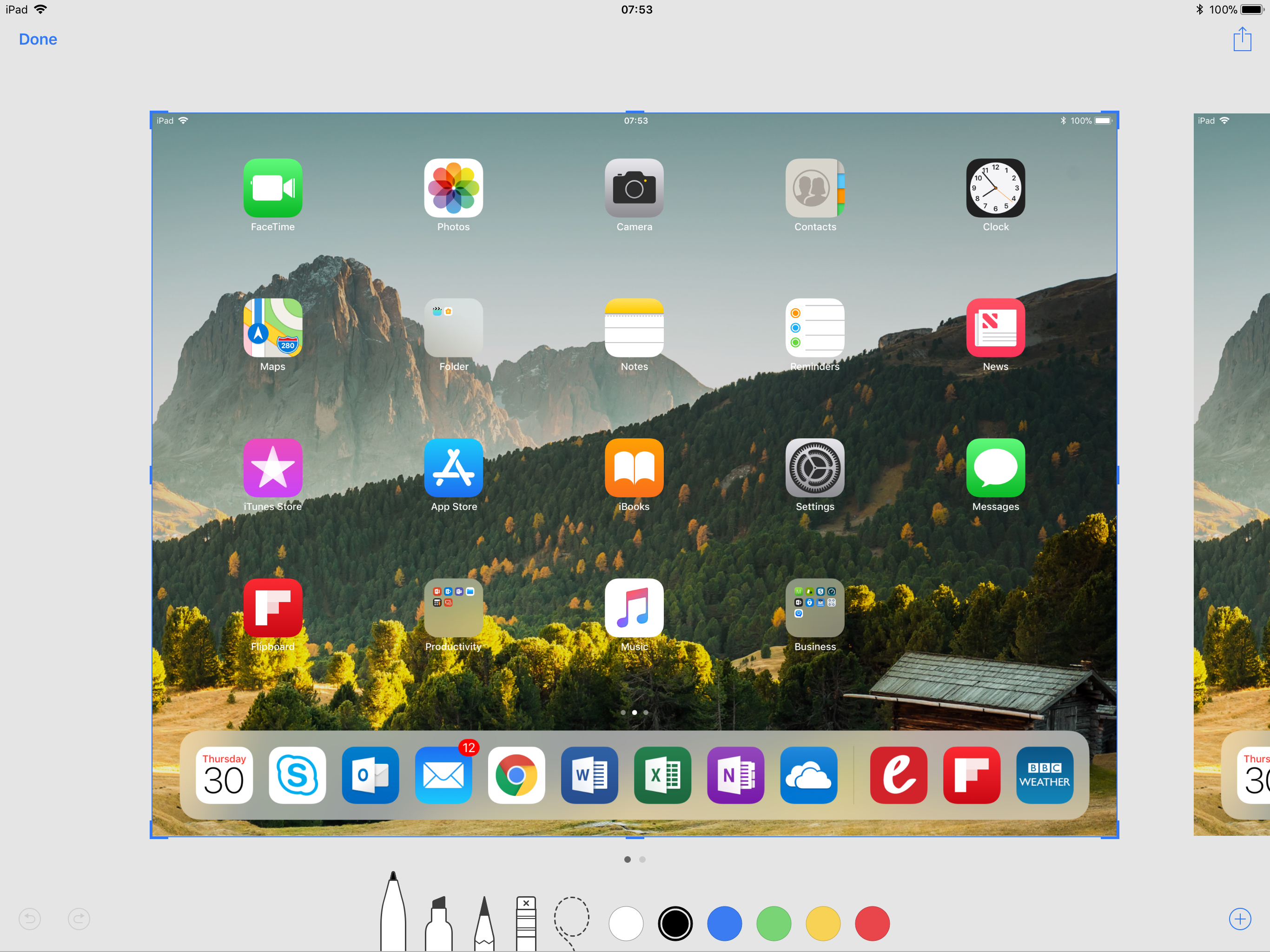
- With your fingers (or pencil) drag the blue box over the area you want to snip
- You can edit with your finger to add highlights, text etc
- Press Done in the top left
- Select Save Photos
- Now press the Home button on your ipad
- Select Photos
- You should see your edited file in there
Comments
0 comments
Please sign in to leave a comment.