
When you set up your iPad and sign in with your iCloud account, Find My iPad turns on automatically. It’s linked with Activation Lock, the Apple security feature that prevents anyone else from using your iPad if it’s stolen.
You should turn off Find My iPad before you return your device to the IT office.
Here’s how to turn it off.
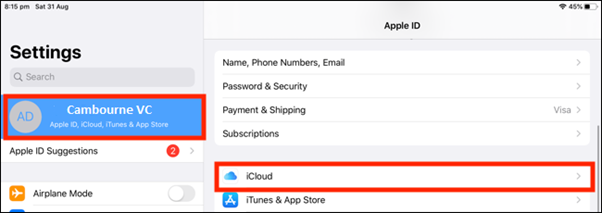
- Open the Settings app on your iPad. On the sidebar, tap your Profile at the top of the list (your name), and then select “iCloud.”
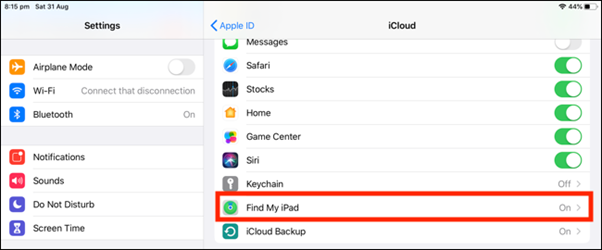
- Scroll down to the “Apps Using iCloud” section, and then tap “Find My iPad.”
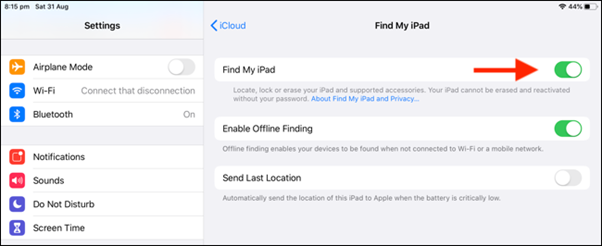
- On the next screen, tap the toggle next to “Find My iPad” to disable it.
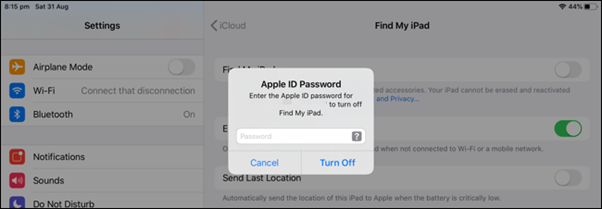
- As mentioned above, you have to type your iCloud password to disable Find My iPad. Don’t forget when you do this, you also remove the Activation Lock from your device. Tap “Turn off” to disable Find My iPad.
How to wipe certain information off your iPad “Factory Reset”
To get rid of certain information off your iPad, like your keyboard dictionary or location history, you can reset certain pockets of information.
Warning: To avoid losing any important data, you'll want to make sure you back up the device to iCloud before resetting it.
After you've performed a backup, you are ready to erase all content on the iPad and reset it back to "factory default" by following these steps:
- Open the “Settings” app on the iPad
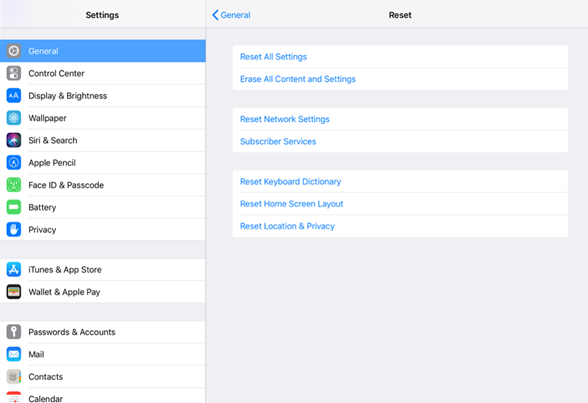
- Go to “General” and then navigate down and tap on “Reset”
- Tap on “Reset All Content and Settings” to start erasing the iPad
- Choose “Backup Then Erase” to backup iPad to iCloud and then erase, otherwise just tap on “Erase Now” to immediately erase and reset iPad
- Enter the iPad passcode and confirm to reset and erase iPad
- The iPad will restart to complete the reset procedure. You will see an Apple logo on the screen with a progress bar.
Comments
0 comments
Please sign in to leave a comment.