
Windows Hello allows you to sign in using facial recognition technology. This is a much safer and convenient way to sign in to your Windows devices.
For a brief introduction, see the video below:
(7) What is Windows Hello? - YouTube
To set it up, follow the steps below.
Note - your IT department will need to enable your account for use with Windows Hello before the various prompts appear.
Note - You may not get prompted for Face ID if your laptop doesn't support it, in which case you'll only be prompted to setup a PIN.
Note - You will need your iPad / phone with you as you may be prompted for MFA.
After your account has been setup:
Sign into your laptop using your username and password. You should hopefully get a prompt asks you to setup Windows Hello. Click Yes, set up
It will start to scan your face. Look directly into your camera, not just your screen.
Once the scan has finished you should get a screen that looks like this:
You will then get a screen asking you to set up a PIN. Click Next
Fill out the details for your new PIN. Click Ok
You'll then get a screen that looks like this, advising that setup is complete. when you next try to sign into your laptop your face will automatically be scanned and you'll be signed in.
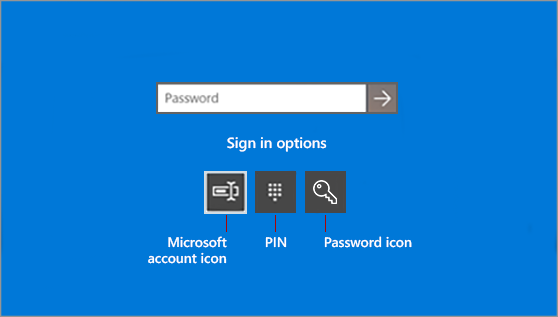
Should you want to continue to sign in using your password, click Sign-in options and choose the key shaped symbol.
Comments
0 comments
Please sign in to leave a comment.