
When I try and add OneDrive or Office 365 Sharepoint to my Microsoft Office I get a message box titled Add a Service - This type of account doesn't work with this particular service. Please enter an email address or phone number associated with a different account:
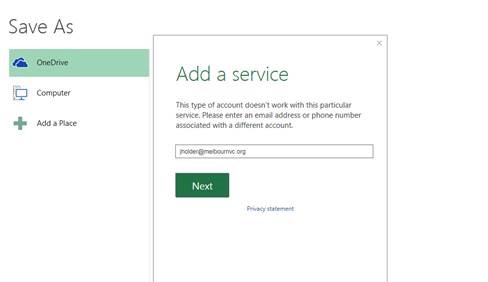
Office has got it's self stick thinking it's signed in but it's not, so to solve the problem:
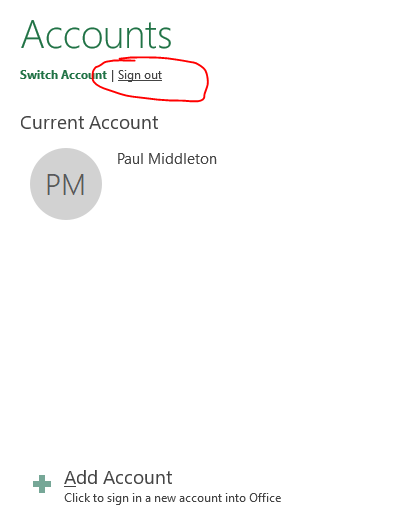
- clicking on your name in the top right (When you’re in a document) and selecting switch account
- Then click on Sign Out which should show as this
-
Then Click on Sign out to the right of your name, then say yes if it prompts you
-
Close Excel
-
Now open excel again
-
Click on Sign in to get the most of out of Office
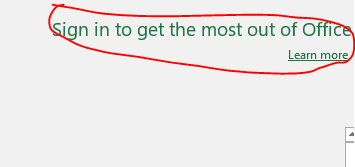
- Then enter your email address click next
- if it prompts for work or school account or personal, select work or school
-
Enter your normal windows/office 365 Password
This should then log you into Office 365 correctly and present you with OneDrive and Sharepoint.
Comments
0 comments
Please sign in to leave a comment.