
To get Outlook on a laptop screen and PowerPoint on a board in extended desktop mode:
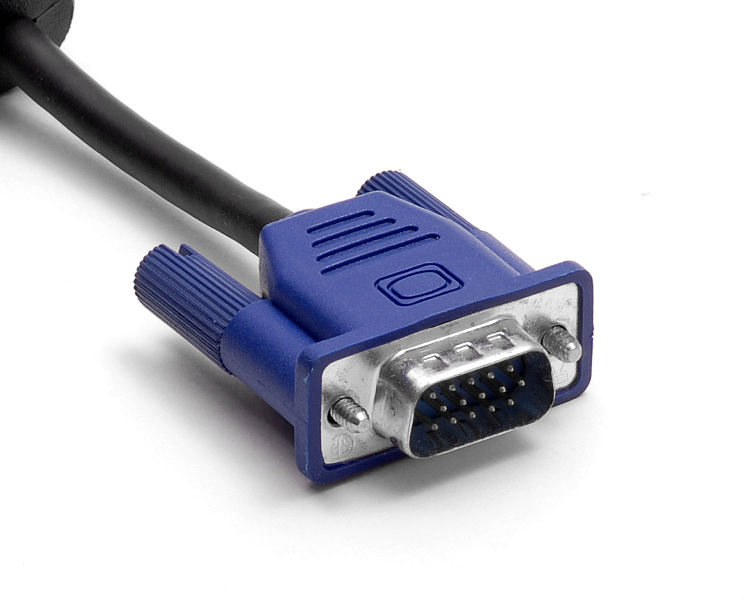
Firstly, plug the classrooms VGA cable into your laptop and switch to extended desktop mode by pressing Windows+P (the windows key is in-between Ctrl and Alt)
- Open Outlook and PowerPoint
- Go into PowerPoint, start the presentation and get to the slide you want to show
- Hold the Alt key and press the Tab key (keep alt held down and keep pressing tab until the Outlook window is highlighted, then release tab) to switch to Outlook
If you find that PowerPoint is still “taking control” and exiting the slideshow you may have to turn off presenter view and then save the powerpoint (unfortunately, presenter view seems to be the default setting for PowerPoint, so it may have to be turned off for each separate PowerPoint file)
- Open PowerPoint
- Click on the slideshow tab
- Click on Set Up Slideshow
- In the bottom right of the Set Up Show window, untick Use Presenter View and then click OK
- Save the PowerPoint
Comments
0 comments
Please sign in to leave a comment.