
1. Open Outlook
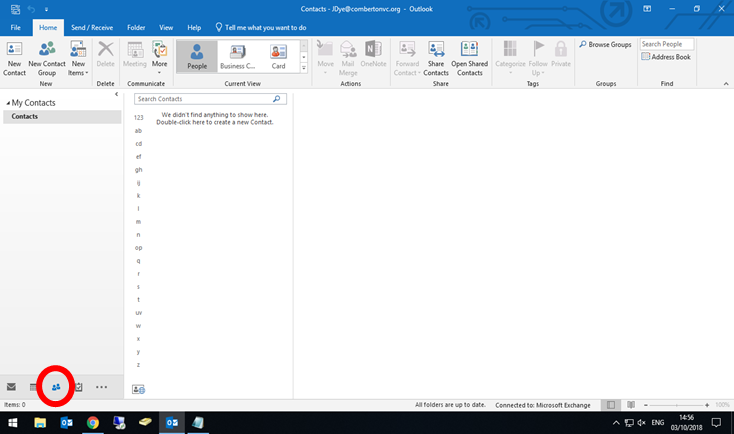
2. Click on the People tab in the bottom left
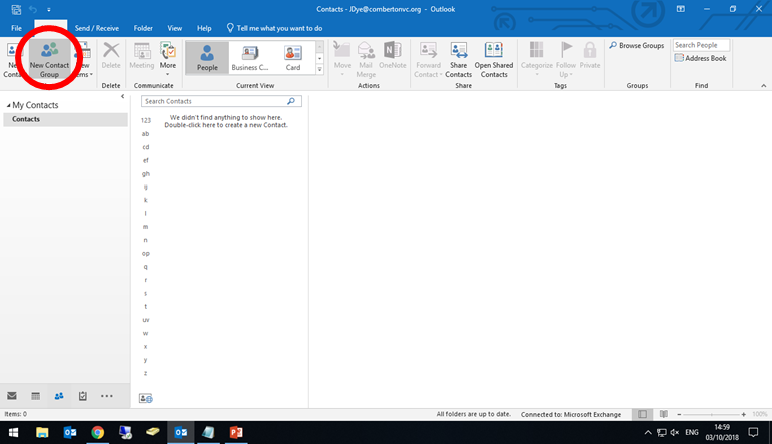
3. Click on New Contact Group in the top left
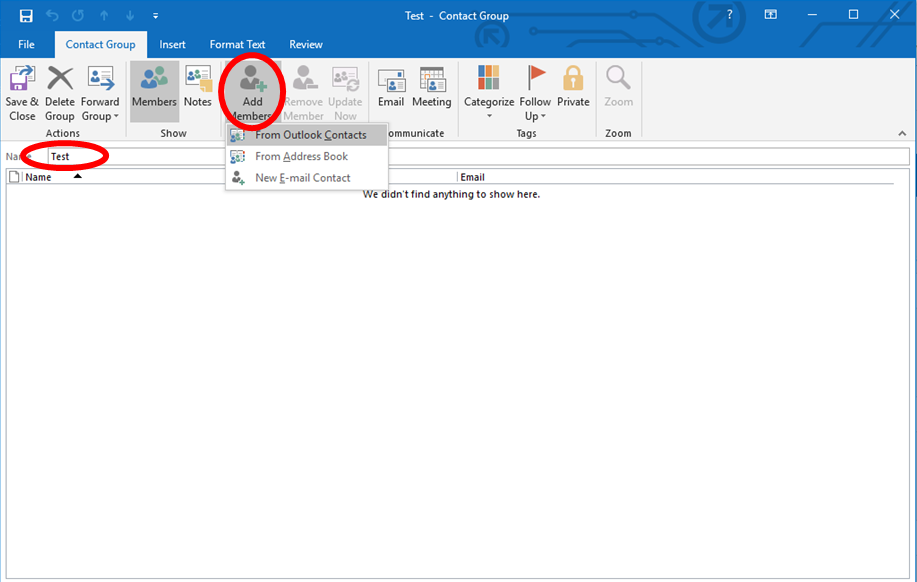
4. In the window that appears, give you group a name and then click Add New Members, then From Contacts
5. Another new window will appear. Click on the drop down box under address book and select "all users", From here you can start adding the contacts you want to add to your new group by searching for them in the searchbox on the left and then double clicking on their name (as you would when sending an email to multiple people). When you've finished adding people click OK at the bottom.
6. You'll be sent back to the Contact Group window, check all you group members appear in the list then click on Save and Close 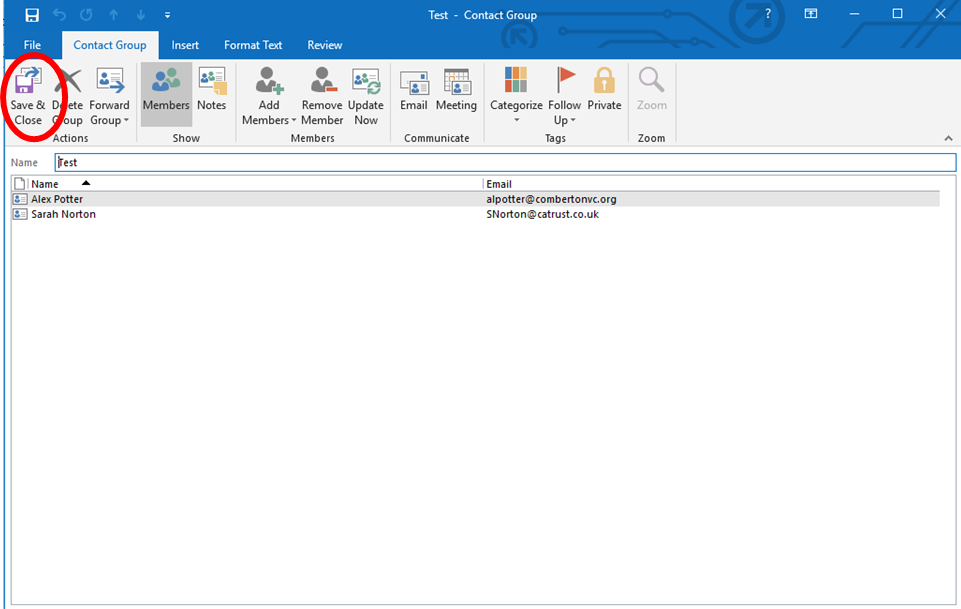
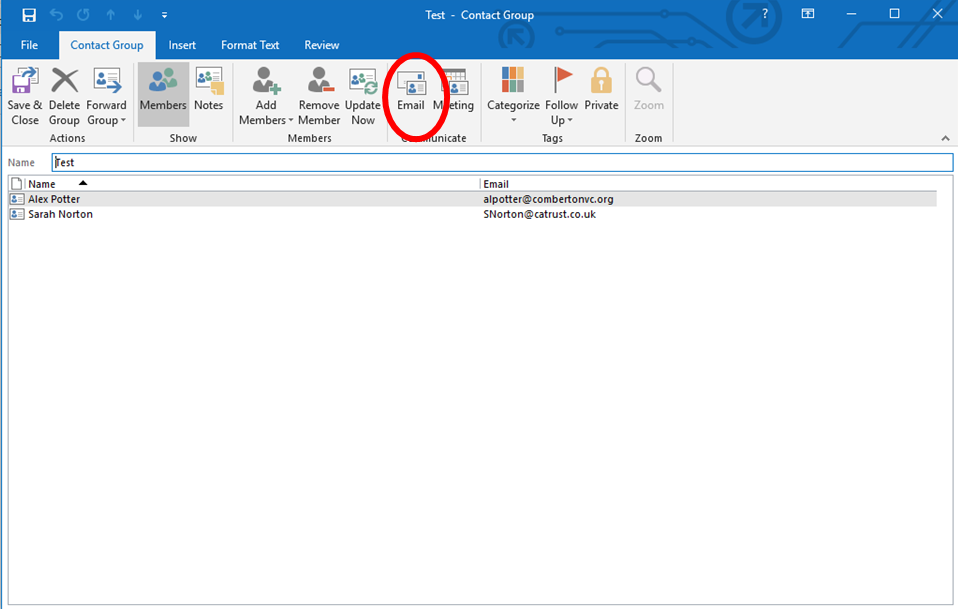
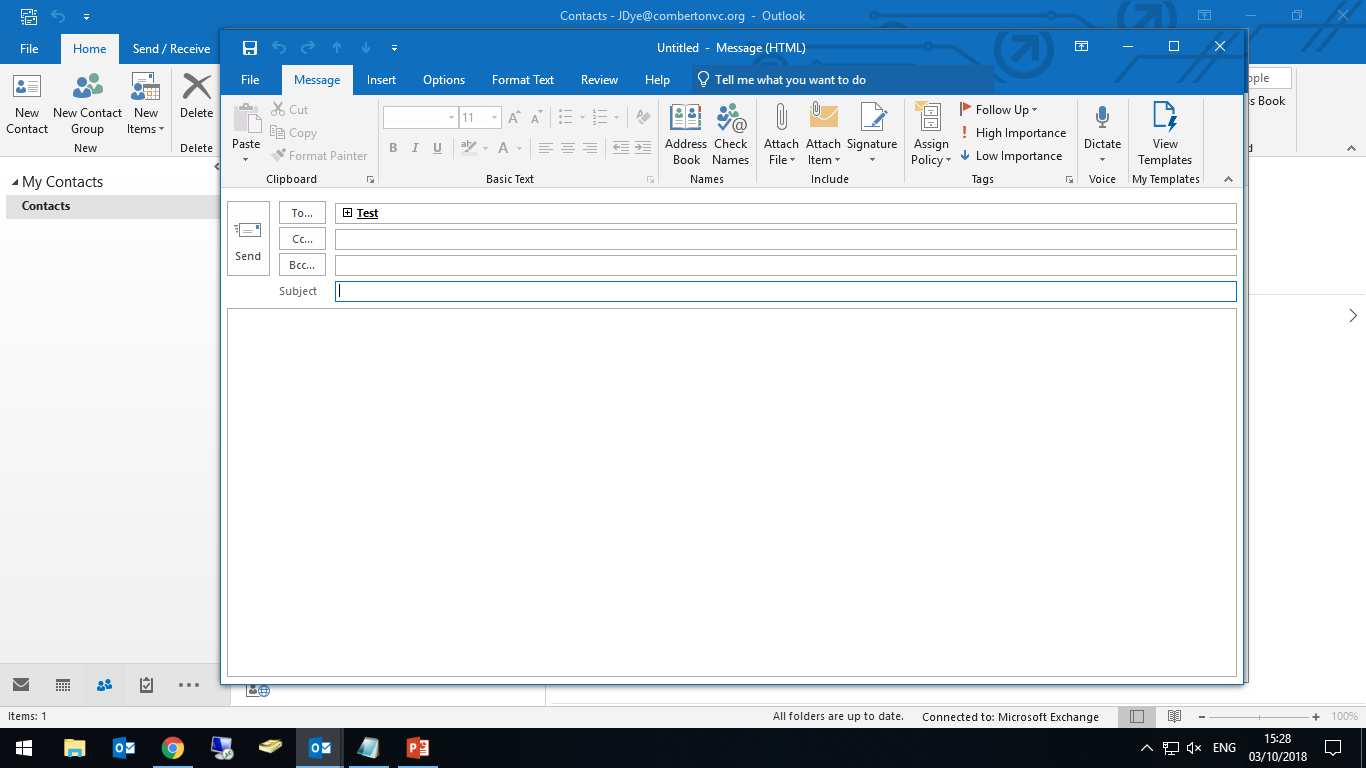
7. Now that your group has been saved, you can click on the People tab any time and see your group. If you double click on your group, in the Contact Group window you can click on the Email button to send and email to everyone in your group.
Comments
0 comments
Please sign in to leave a comment.