
If you don't have the Outlook application on your personal device/computer, you may not be able to see shared mailboxes via webmail like you would normally see below your inbox whilst logged in at school
Method 1:
Log into webmail: Portal.office.com
Sign in, click Outlook
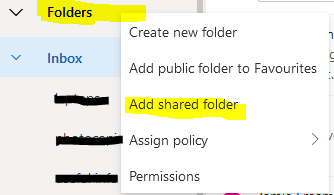
- Right click on 'folders'
- select add shared folder
- In the new pop up window, type in the name of the shared mailbox e.g. com-thecollege until the address appears. Click to select it.
You should now have the shared mailbox listed on the left side of your screen, below your email folders.
Method 2:
Log into webmail: Portal.office.com
Sign in, click Outlook
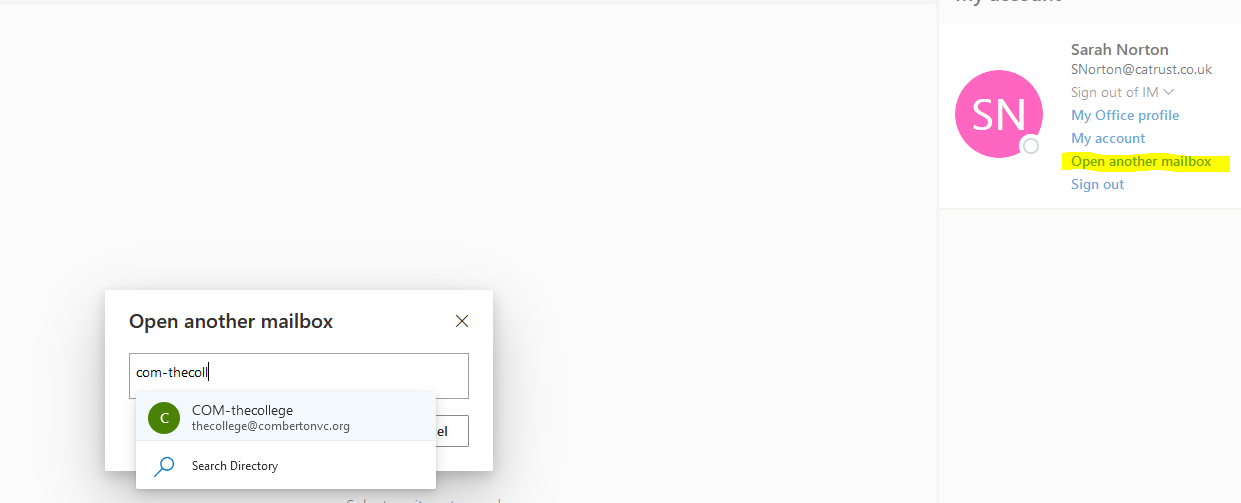
Click on your initials icon/your icon located at the top right corner
Click open another mailbox, then type in the name of the shared mailbox, e.g. com-the college... until the address appears (like in the image) and select it
This will then hopefully open the mailbox in another tab
Please be aware that you will only be able to open shared mailboxes you normally access. If you can't open a mailbox it is likely because you do not have the required permissions to access a particular mailbox.
Comments
0 comments
Article is closed for comments.