
Due to increased Phishing Attacks during 2020-2021 we've started to allow and indeed encourage staff and students to enable Multi Factor Authentication, there's a brief video below taking you through the steps, the link to get to the first screen is here - Enable Microsoft MFA
Microsoft Authenticator App Link - Microsoft Authenticator – Securely Access & Manage Your Online Accounts
If you'd rather follow through step by step screenshots scroll below the video:
Step by step:
The process below will require you to use the Microsoft Authenticator App, this can be installed on a personal or school provided phone or tablet, it can be found in the school Self Service Store on school provided iPads.
Microsoft Authenticator App Link - Microsoft Authenticator – Securely Access & Manage Your Online Accounts
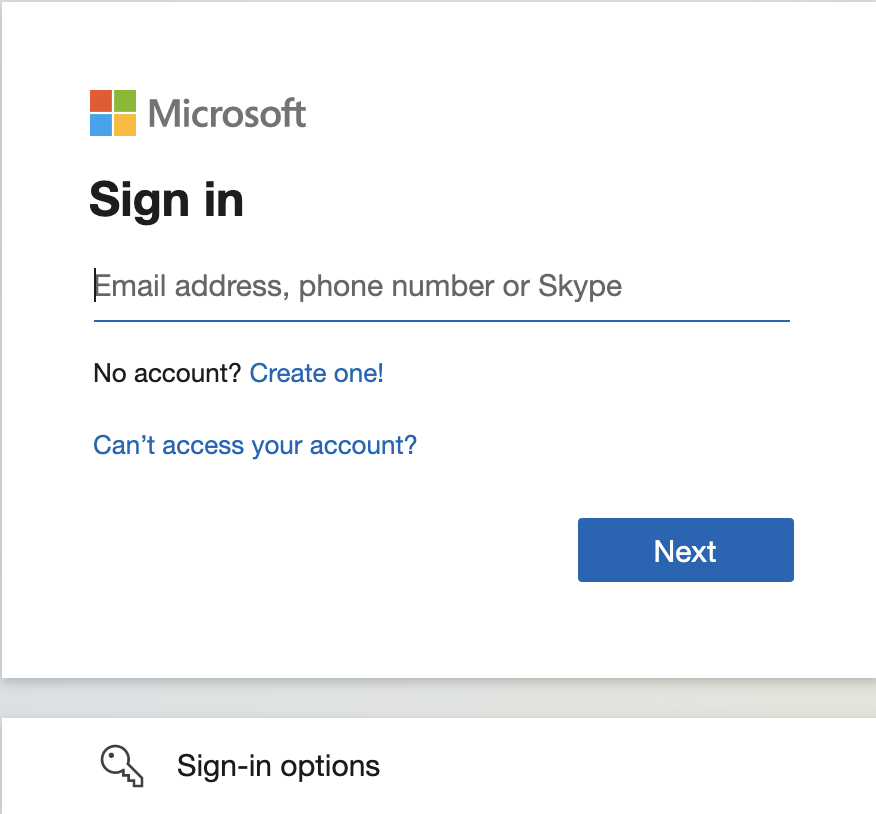
- Click on this link to start - Enable Microsoft MFA
- On the resulting screen enter your normal school email address
- Click on NEXT
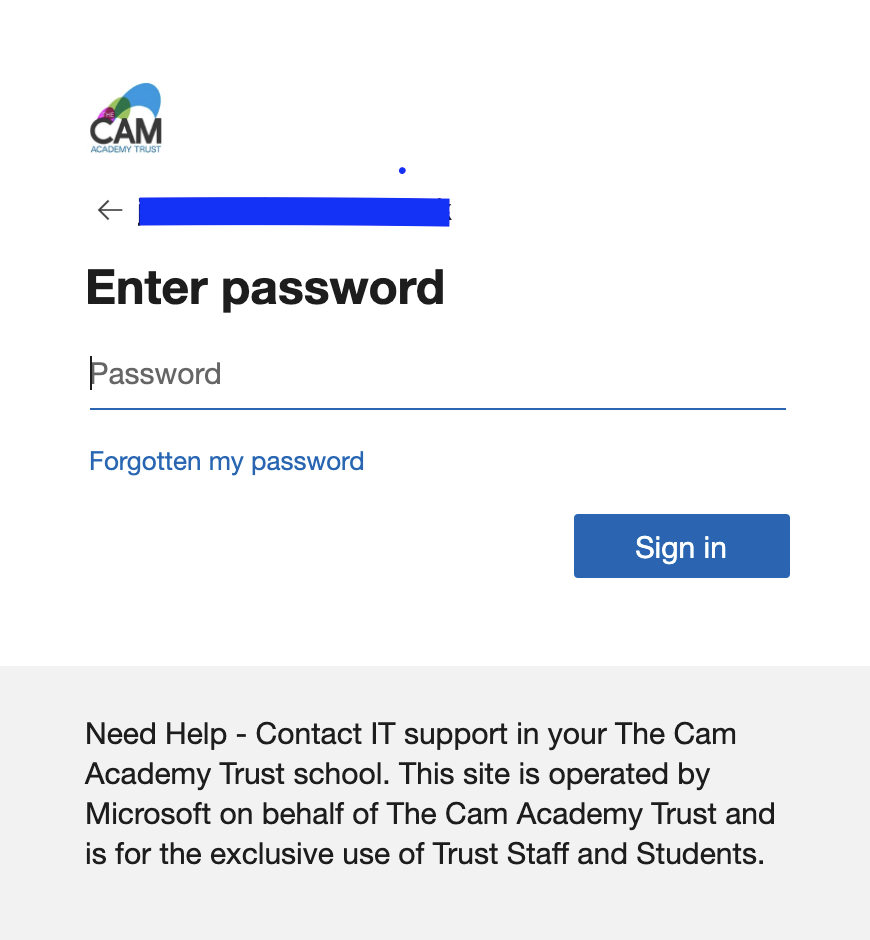
- Enter your normal Office 365 password
- You may now be prompted to Stay Signed In? Click on Yes
- On the More information required screen click on Next
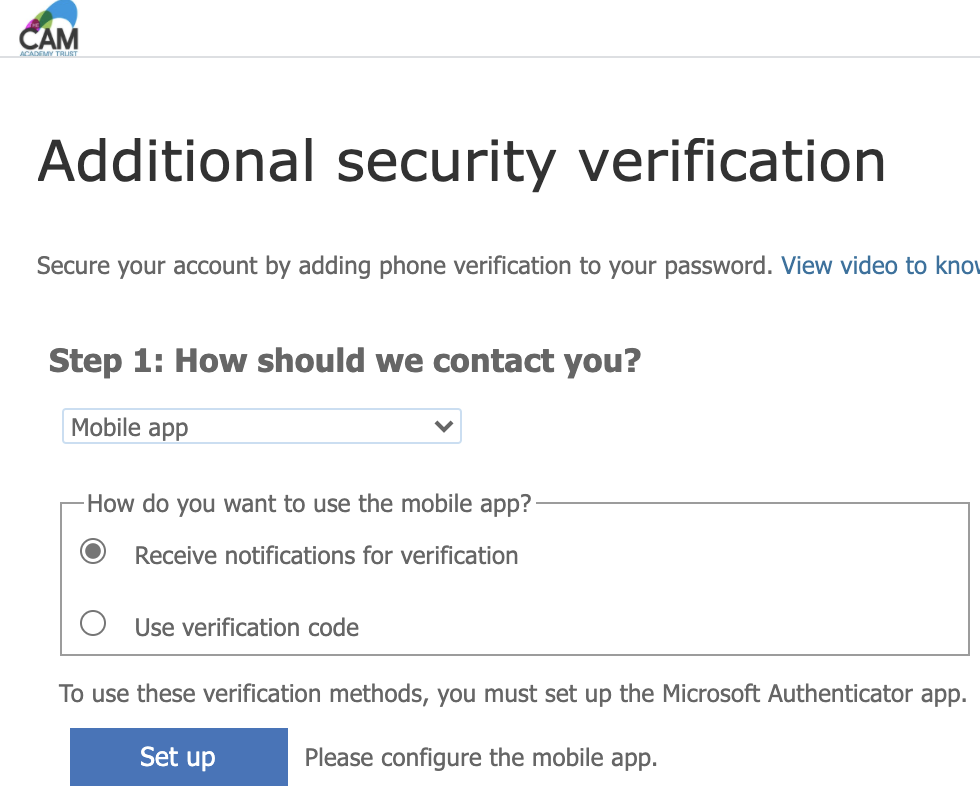
- On the next screen you'll be asked how to be contacted (ideally select Mobile App from the drop down), you can use any of the three options but the call will happen immediately and SHOULD NOT be the main school number as the service is automated!
- If you have chosen Mobile App you should see a window like this:
- Read the instructions and follow them.
- Complete the setup of the App on your mobile device
- Follow the steps on your phone to authenticate and you should finally land on a step asking for a phone number (this is a backup number should you loose your phone!), ideally use a personal phone number (we do not get this information given to us, it's stored securely by Microsoft away from our main systems so kept secure). If you have a direct dial landline number you can use this.
- Click on Finished
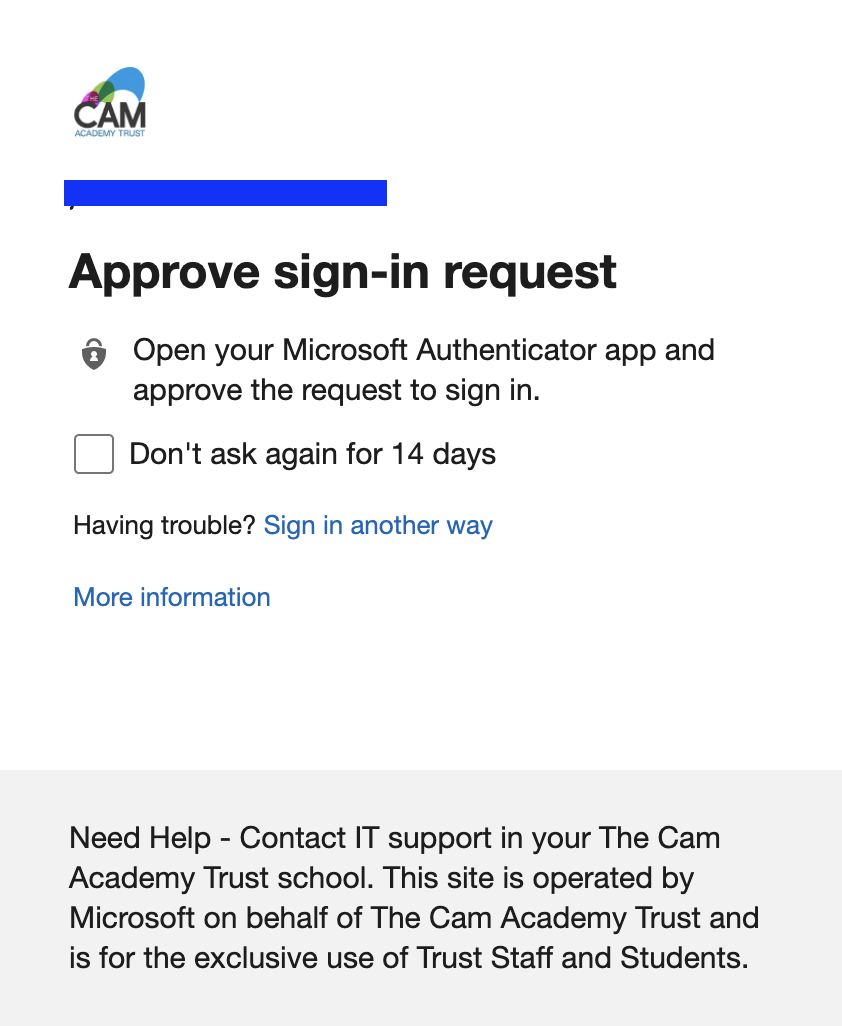
- You might be dropped back to a timeout screen, don't worry, sign in again and follow the steps, you should now be presented with the following screen and a message on your mobile device from the MS Authenticator App asking you to confirm.
- Confirming on your phone should log you into your account and may present this window, if it does then feel free to add further authentication options if you like but no need to, you can close this window.
- Every device you have added your Office 365 account to will probably now disconnect and ask you to authenticate again using the Authenticator app, please do so on those devices you wish to continue to use.
Comments
0 comments
Please sign in to leave a comment.