
If you don't already have the Teams icon on your desktop or in the start menu, you can download the Teams app via office 365
Login to webmail/Office 365: this can be accessed by following methods:
- by typing in office.com or portal.office.com in a web browser
- clicking on the Webmail icon (star) if you are logged into a school laptop
Sign in with your school email address and password
Click on the Teams icon
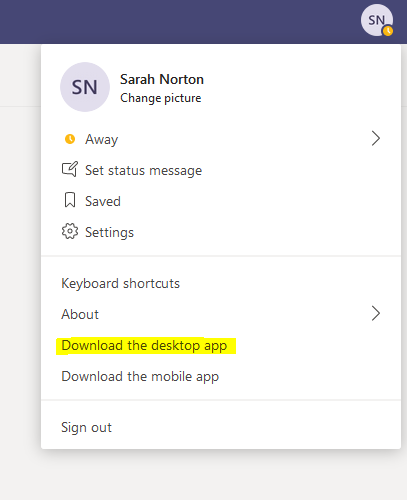
After Teams has loaded, find and click on your initials icon in the top right corner of the webpage
Select 'download the desktop app'
You will not be asked for an administrator password
The app will now download and you should now have the Teams icon on your desktop and/or start menu. You'll need to sign in with your school email and password again
You can use this method to download the Teams app on a personal device.
Comments
0 comments
Article is closed for comments.