
Sharing with individual people inside the Cam Academy Trust
Sharing with individual people outside of the Trust
- Your OneDrive files are private to you unless you decide otherwise by following the instructions below.
- Everyone is able to use OneDrive to share photos, files and entire folders with people inside the Cam Academy Trust.
- Some individuals are able to share links to external contacts.
- This only applies to personal files from OneDrive. Most SharePoint sites have sharing disabled.
- Act cautiously as you are responsible for the security of data when deciding to share resources.
The following instructions are for OneDrive within a browser
Sharing with individual people inside the Cam Academy Trust
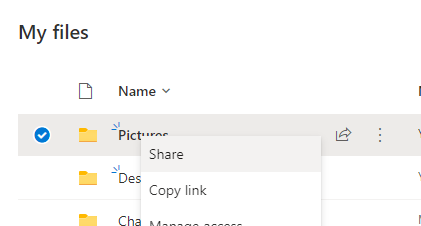
- Navigate to the file or folder you wish to share, right click it and click Share
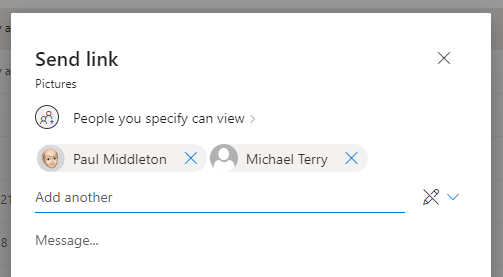
- Search for and add the individuals or groups you wish to have access
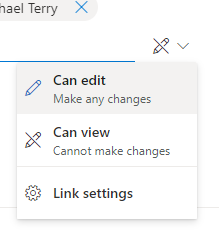
- Select the pencil icon, and choose if you want these people to be able to edit the content or not
- Add a message if you want to, which will be included in the email they will receive.
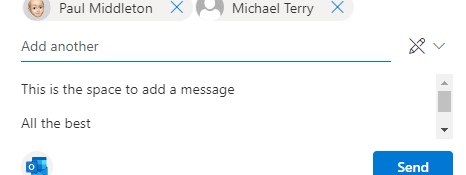
- Click Send
- Your recipient should receive an email containing a clickable link which will lead them to the file or folder that you've shared.
Sharing with individual people outside of the Trust
Not everyone can share externally. Please contact support@catrust.co.uk to request this permission
- Navigate to the file or folder you wish to share, right click it and click Share
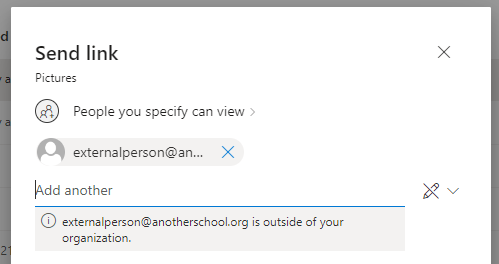
- Carefully enter the email address of your contact - you will be informed that they are outside of your organization.
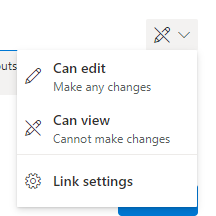
- Select the pencil icon, and choose if you want these people to be able to edit the content or not
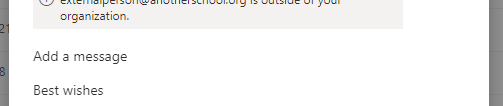
- Add a message if you want to, which will be included in the email they will receive.
- Click Send
- Your recipient should receive an email containing a clickable link which will then send another message with a security code. They then enter this code to access the file or folder that you've shared.
Comments
0 comments
Please sign in to leave a comment.