
- Open the Team
- Click "Manage Team"

- Expand "Members"
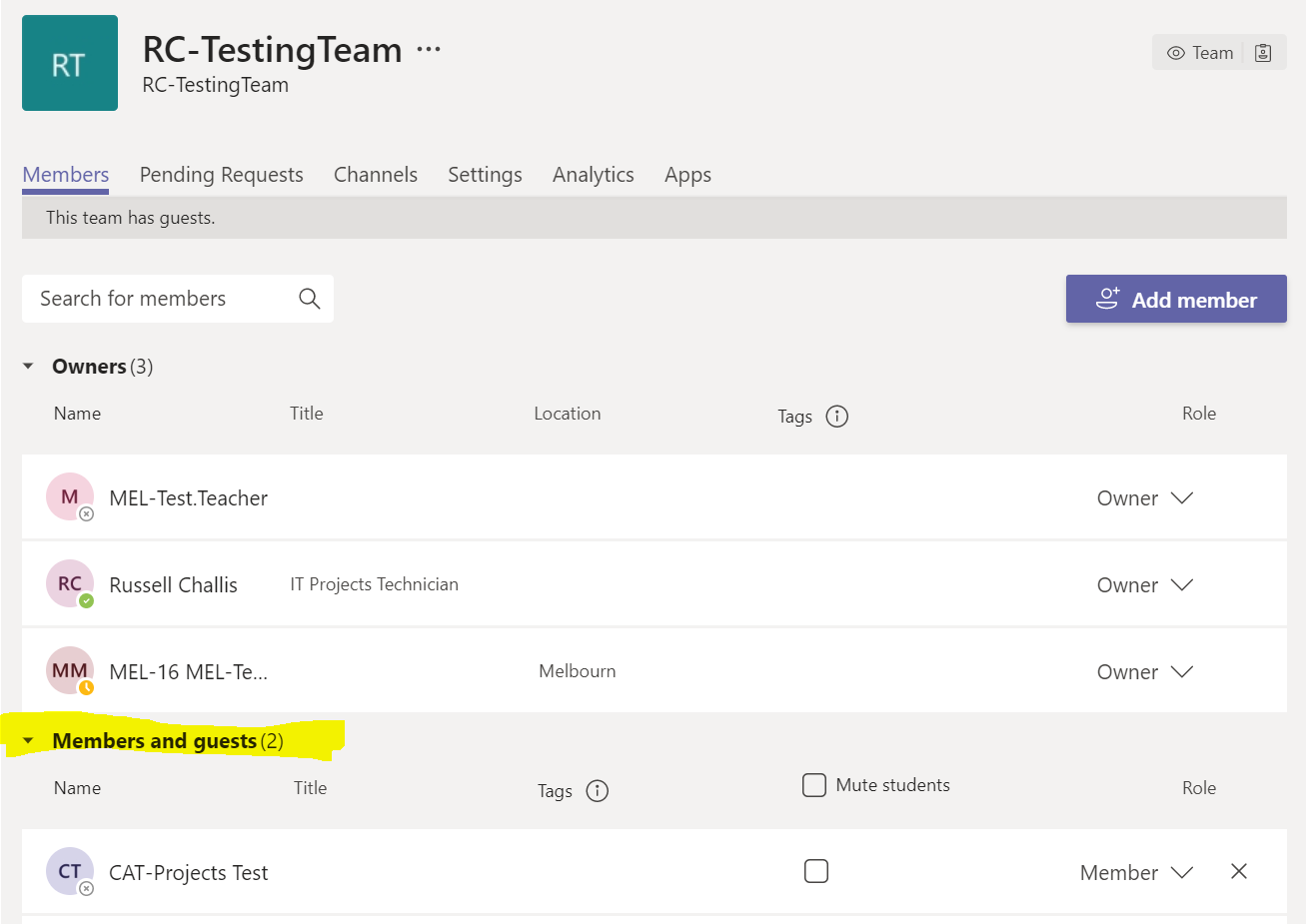
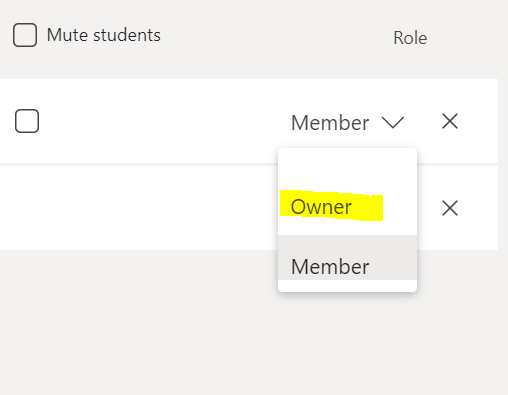
- Look for the staff member and click the dropdown next to "Member", click "Owner"
- Allow a few seconds for the changes to take effect.
- The selected staff member will now be an owner of the Team
If you are looking to grant users permission to share their screen, mute students etc. Please see the guide below.
Setting someone as a presenter in a Teams meeting (zendesk.com)
Comments
0 comments
Article is closed for comments.