
It's very easy to sync a folder from SharePoint/theCATalogue to your computer using the OneDrive client, but what do you do if you need to un-sync?
Here's a handy guide...
| Watch a video walkthrough here |
The steps are as follows:
- Verify that you are syncing live
- Disconnect from the folder
- Delete the copy which remains on your computer
==========================================
Verify that you are syncing live
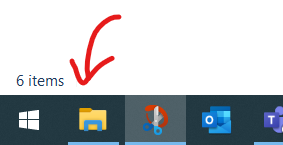
Go to Windows Explorer (usually a yellow folder icon next to your start button)
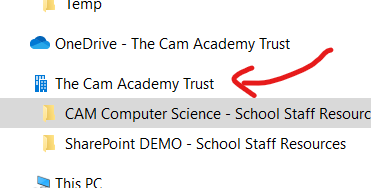
In the list on the left hand side, look for 'The Cam Academy Trust' underneath 'OneDrive - The Cam Academy Trust) and click on it
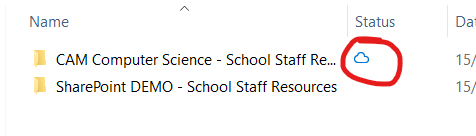
Synced folders will be listed in the right window with a blue cloud (solid blue or blue outline), or maybe a green tick, in a column called 'Status'. If it's not currently synced, it won't have any of these and you can jump to 'Delete'
==========================================
Disconnect from the Folder
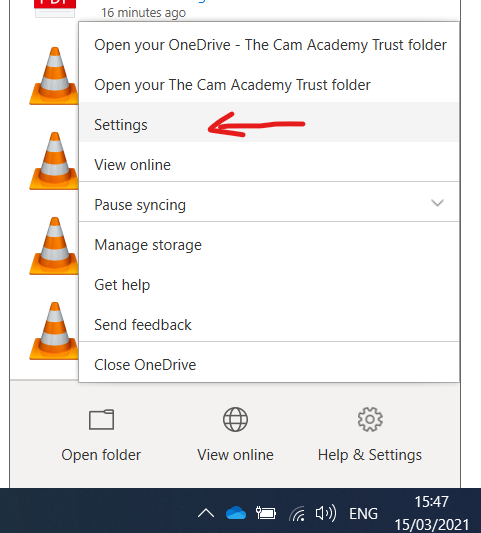
Go to the System Tray (bottom right, by the clock) and locate the OneDrive blue cloud icon - you might need to click the ^ arrow

Right click and select 'Settings'
Click the 'Account' Tab
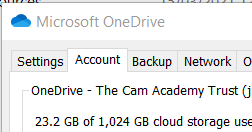
In the bottom section, find the folder you no longer wish to sync, and click 'Stop Sync', and then confirm
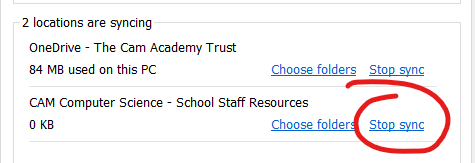
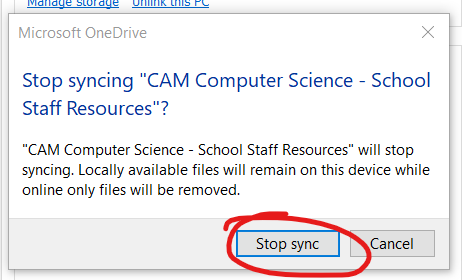
Click OK
==========================================
Delete the copy which remains on your computer
Go to Windows explorer (as described in Verify that you are syncing live) and check that the folder no longer has a cloud or a tick next to it
N.B. if this was the only folder you were syncing, this section will have disappeared from this view entirely. You won't see it again until you sync another folder - when you do, continue as below.

As long as the blue cloud or tick has gone, it is no longer syncing and you can safely right click the folder and delete it.
If it says the following, the answer is yes
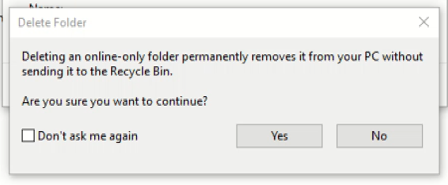
Don't be scared by this, as it's only removing it from your PC because it's no longer synced
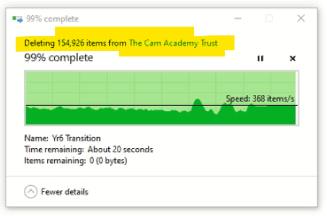
It may take a few minutes to complete if you had a lot of content synced - be patient.
Comments
0 comments
Please sign in to leave a comment.