
When you delete something from theCATalogue/SharePoint or OneDrive, it doesn't disappear into the big unknown straight away - it spends 93 days in the recycle bin - purgatory before the final banishment...*
(* we also have backups in a separate location, so even after 93 days, there is hope! Contact support@catrust.co.uk)
Restore items from the recycle bin in SharePoint
- Go to the SharePoint site that the items were deleted from.
- In the top right corner, click Settings
 , and then click Site contents.
 - The recycle bin is in the top right portion of the Site Contents page.

- On the Recycle bin page, click the box to the left of the items or files you want to restore.
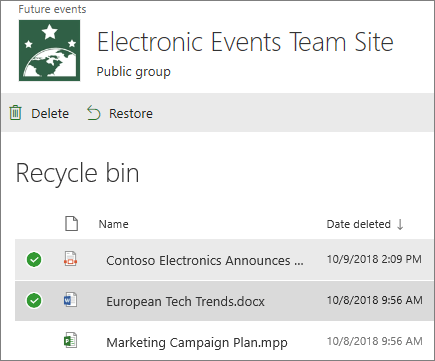
- Click Restore.
- When an item is restored, it is restored to the same location that it was deleted from.
Restore items from the recycle bin of Teams
- In Microsoft Teams, from the Files tab at the top of your channel, select ... > Open in SharePoint.
- In the top right corner, click Settings , and then click Site contents.
- The recycle bin is in the top right portion of the Site Contents page.
- On the Recycle bin page, click the box to the left of the items or files you want to restore.
- Click Restore.
- When an item is restored, it is restored to the same location that it was deleted from.
Restore deleted files or folders in OneDrive
- Go to your OneDrive in Chrome, Edge or Safari
-
In the navigation pane, select Recycle bin.
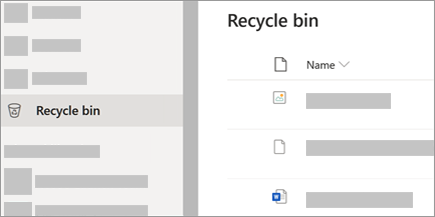
- Select the files or folders you want to restore by pointing to each item and clicking the circle check box that appears, and then click Restore.
Comments
0 comments
Please sign in to leave a comment.