
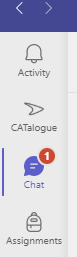
Some school staff have been assigned an app in Teams (desktop and web only) which, when tapped, opens the school's CATalogue homepage.
For most, if it works then this is all you need to know. But for some, this article may be useful...
iPad
Currently, this feature isn't available in the mobile version of Teams - I have no idea why Microsoft made this decision, but we're kind of stuck with it!
You'll see the app in the desktop version (Windows and macOS), as well as on https://teams.microsoft.com in the browser
==========
Wrong school
Because of the way the distribution works, we can only assign one of these apps automatically. If you are a member of more than one school's staff group, you may have the wrong app assigned.
If you see another school's app and you don't know why, please contact IT support.
You still have control over your apps, and you can easily add the button for the correct school using the instructions below...
==========
Add another school's app
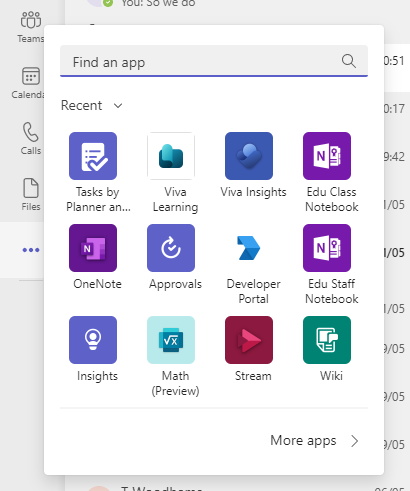
Tap the three dots menu and go to 'More apps'
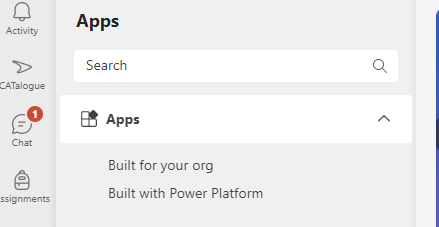
Tap 'Built for your org' from the list on the left
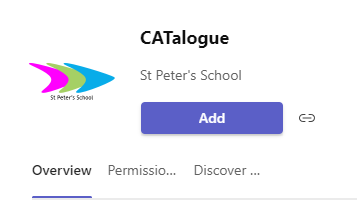
Select the correct school's app from the list and tap 'Add'
Click and drag the button to your preferred position on the app menu (sadly, there is no way to rename the tab - if you want more than one school, you'll need to remember which is which...)
==========
Remove a button
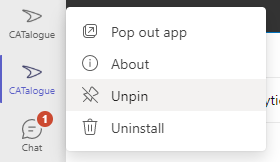
If you wish to remove a button from the app list, simply right click it and select 'Unpin'
Comments
0 comments
Please sign in to leave a comment.