
- Open OneNote 2016 on your pc.
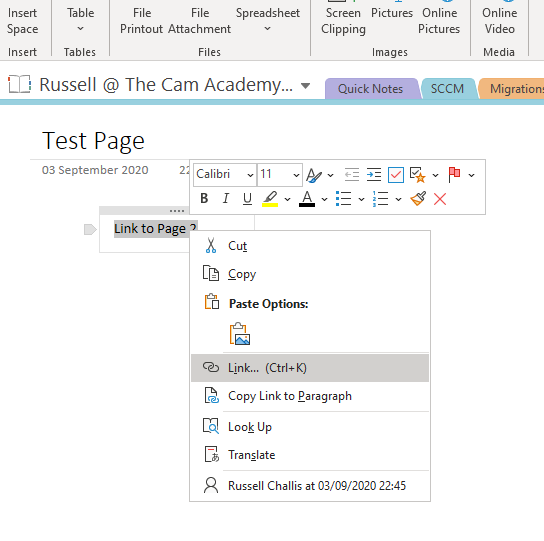
- Navigate to the text you would like to link. Right-click and click "Link"
3. On the dialogue box, select the page you would like to link to, then click OK.
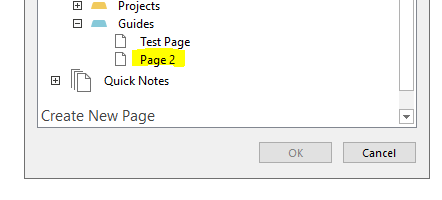
4. Clicking the text you have linked will now direct you to the appropriate page in your OneNote.
OneNote for Windows 10:
- Open OneNote for Windows 10
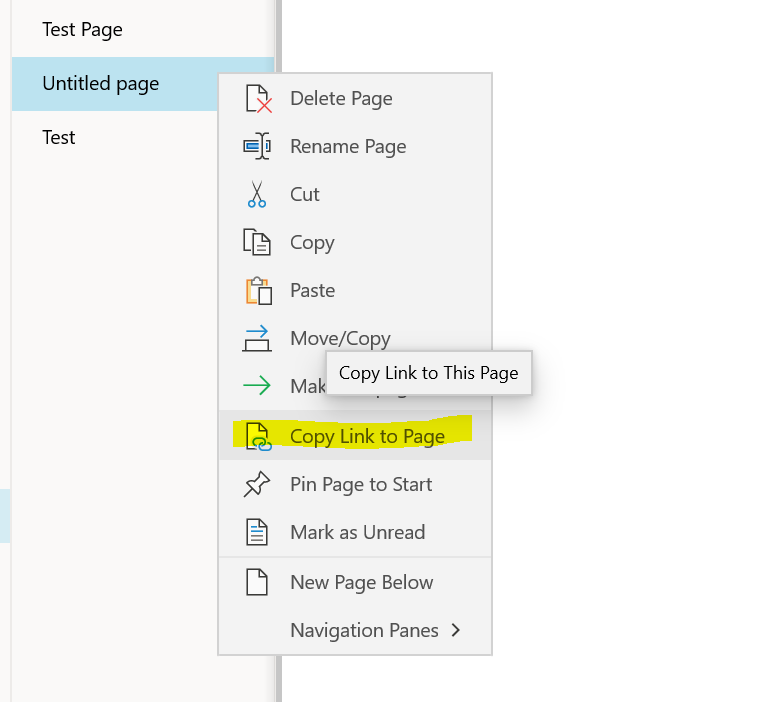
- Navigate to the page you would like to link to
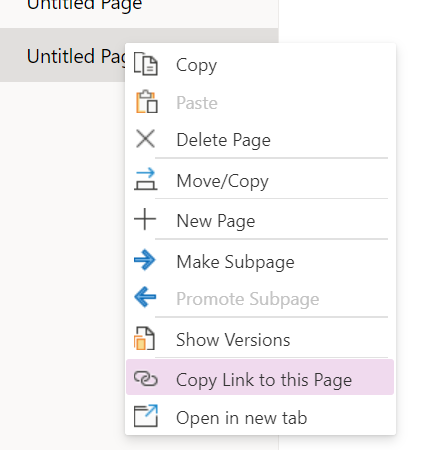
- Click "Copy Link to Page"
4. Navigate back to the page where you would like to link from
5. Select the "Insert" menu and highlight the text. Then click "Link"
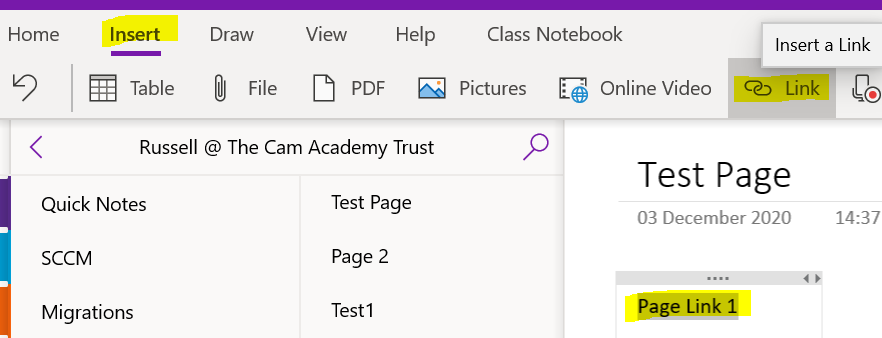
6. In the "Address" box, paste the link you copied earlier and click Insert.
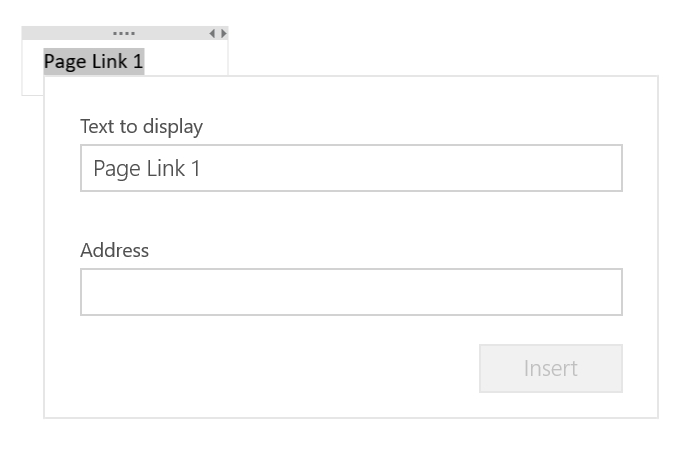
7. The text should now turn blue.
OneNote Web:
- Open OneNote and navigate to the page you would like to link to
- Right-click on the page/section and click "Copy Link to This Page"
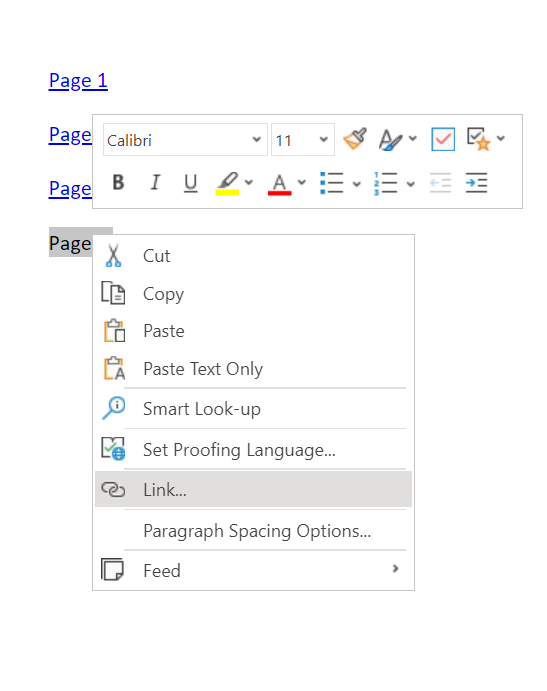
3. Navigate to the page you would like to link from and select the test.
4. Right-Click and Click "Link"
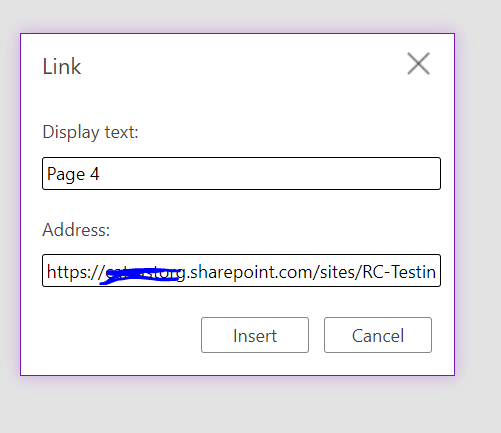
5. In the "Address" box paste the link you copied earlier and click "Insert"
Comments
0 comments
Article is closed for comments.