
1. Open OneNote 2016 on your pc.
2. In the toolbar select "Find Tags"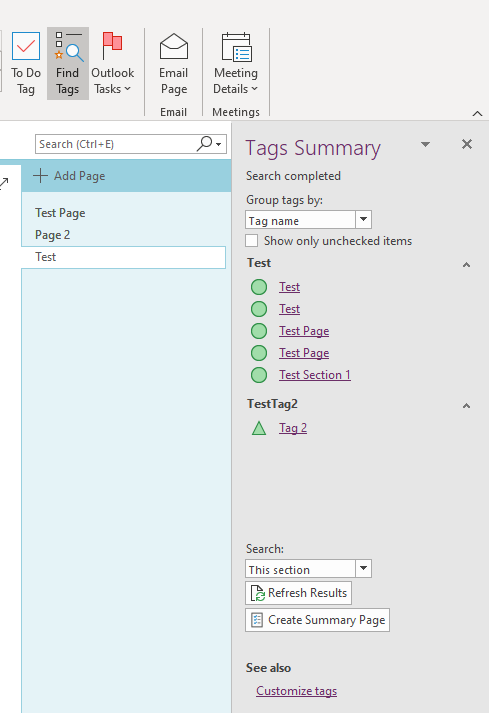
3. In the dropdown select Group Tags By "Group Name" and Search: "This Section".
4. Click "Refresh Results"
5. This view will show each instance where a tag is used within that section. You can navigate to the tag by clicking the purple underlined text.
6. To create a summary page, click the "Create Summary Page". This will create a page with all of the tags and a link in different sections based on the Tags used.
7. Large icons are tagged pages, smaller tags are specific text or section headings.
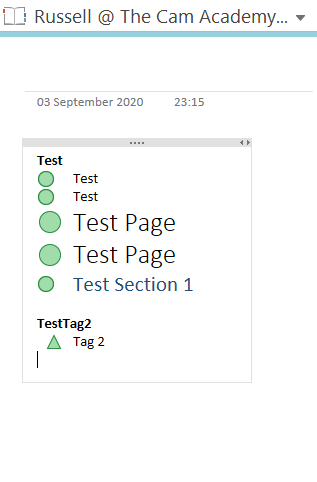
8. To hyperlink content, highlight the text next to the tag (on the summary page), right-click and select "Link"
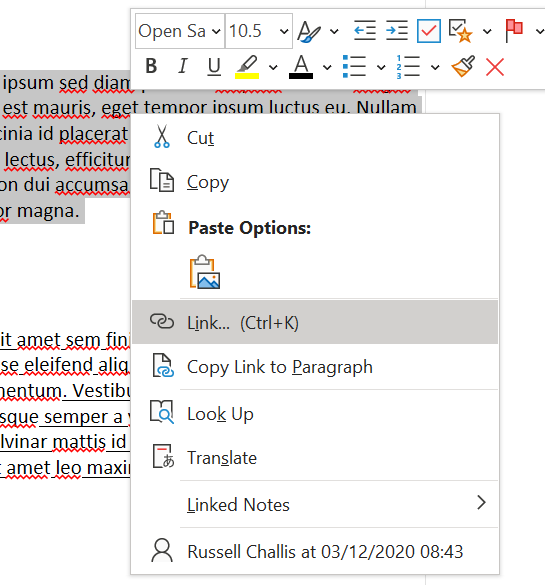
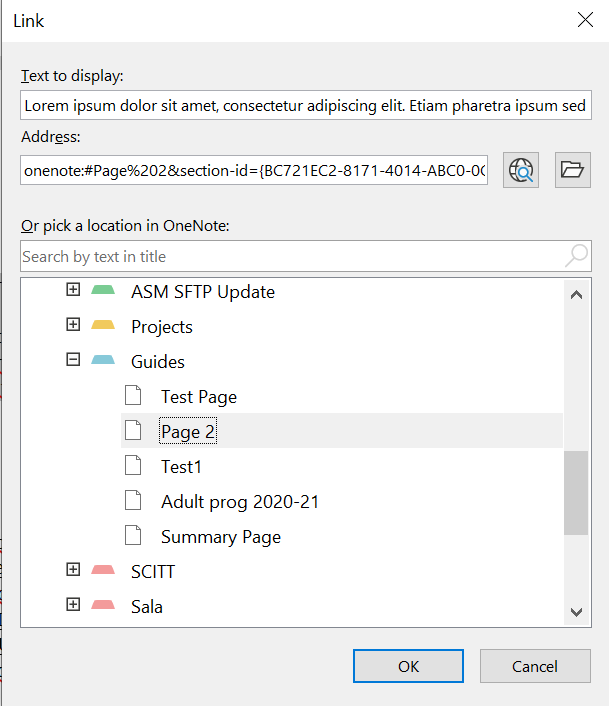
9. Find and select the page whereby the evidence is stored and click Ok.
10. Your tags will now be linked to the relevant page in the Parent OneNote page.
OneNote for Web (Including OneNote for Windows 10)
- Create a new page named "Summary" or a name of your choosing
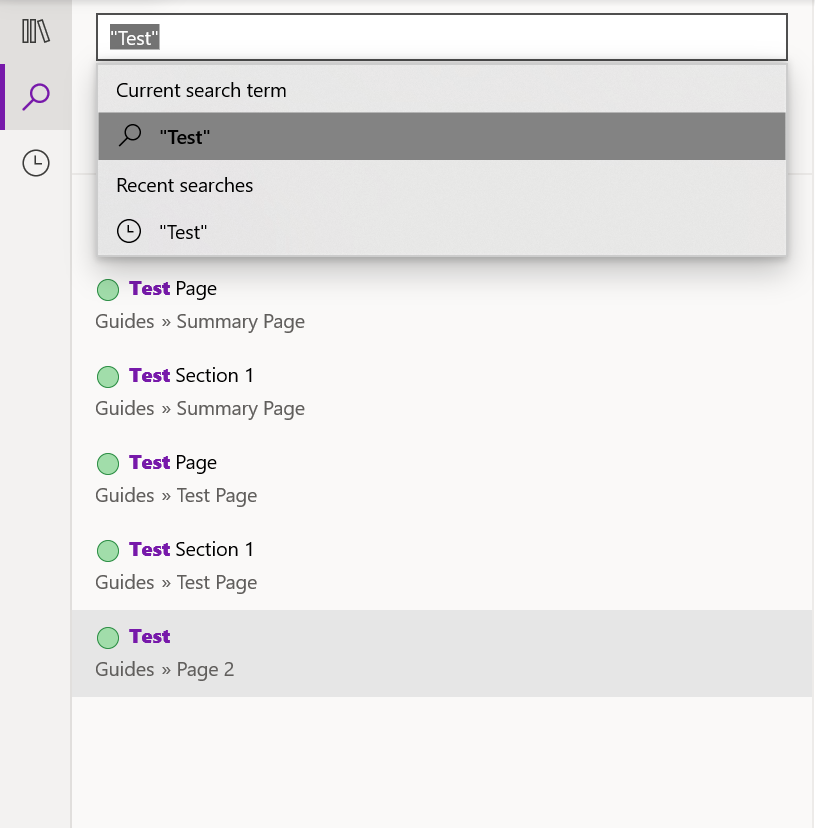
- Locate a tag you would like to include on the summary page, the search may help
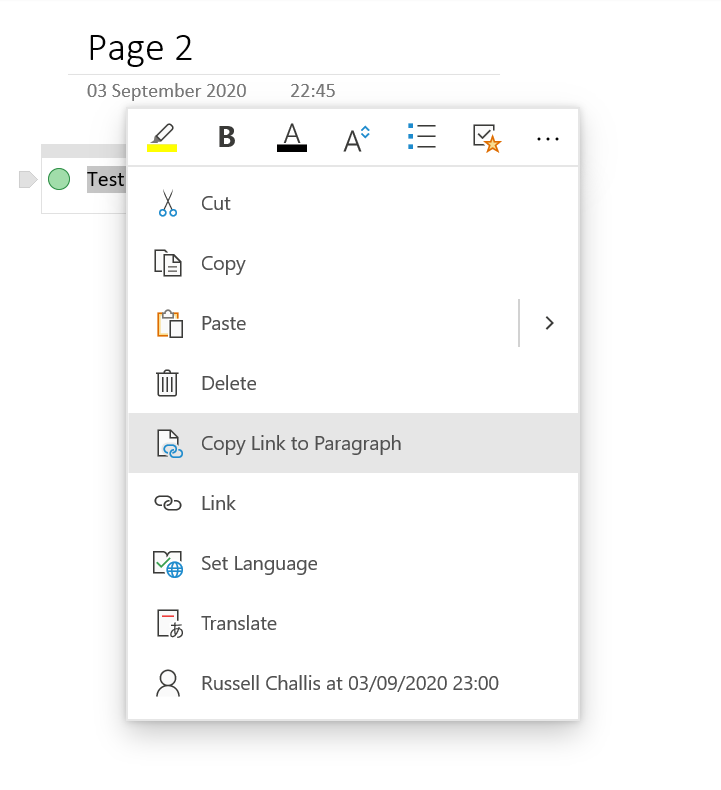
3. Select the text next to your tag and click"Copy Link to Paragraph"
4. Navigate back to your summary page
5. Type a name for your tag shortcut

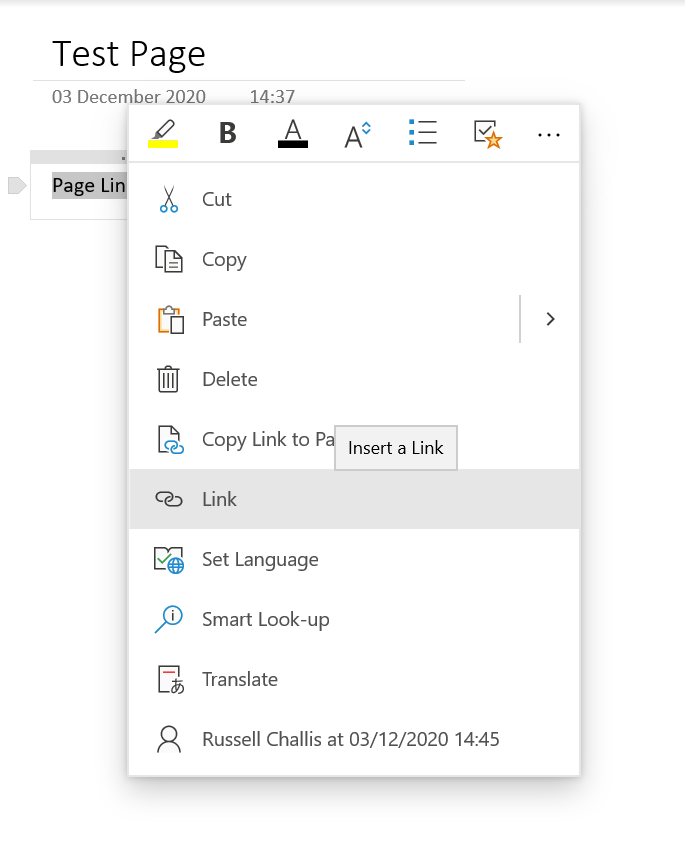
6. Highlight the text and right-click. Click "Link" then in the "Address" box paste the link.
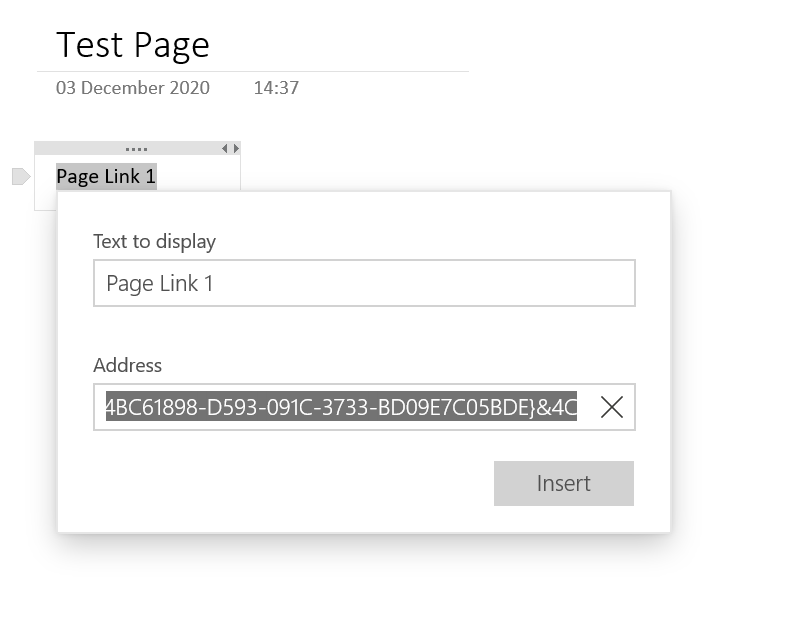
7. Click Insert.
Comments
0 comments
Article is closed for comments.