
- Open the Outlook for Mobile app on your mobile device.
- Click your initial in the top left of the screen.
- Click the envelope with a blue + next to it.
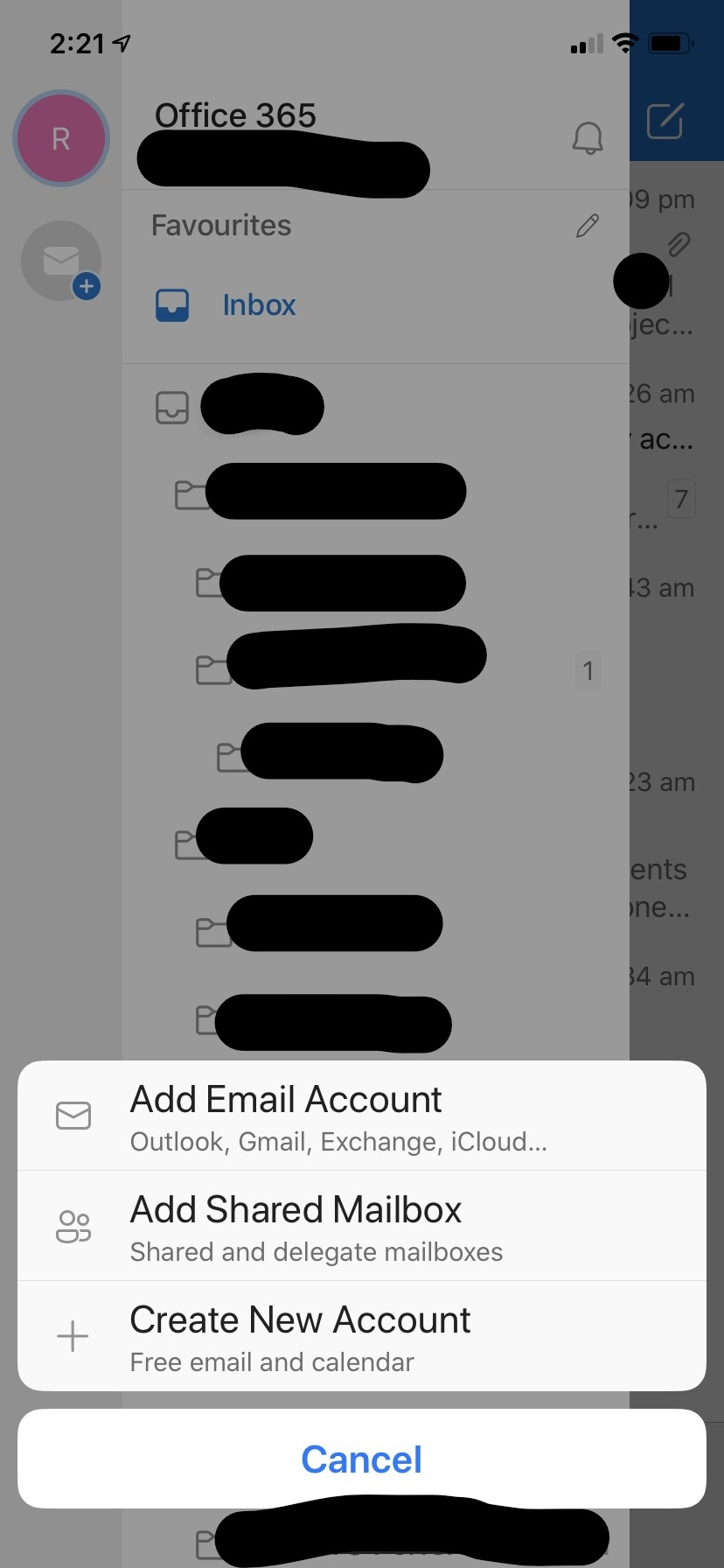
- When the menu appears, click "Add Shared Mailbox"
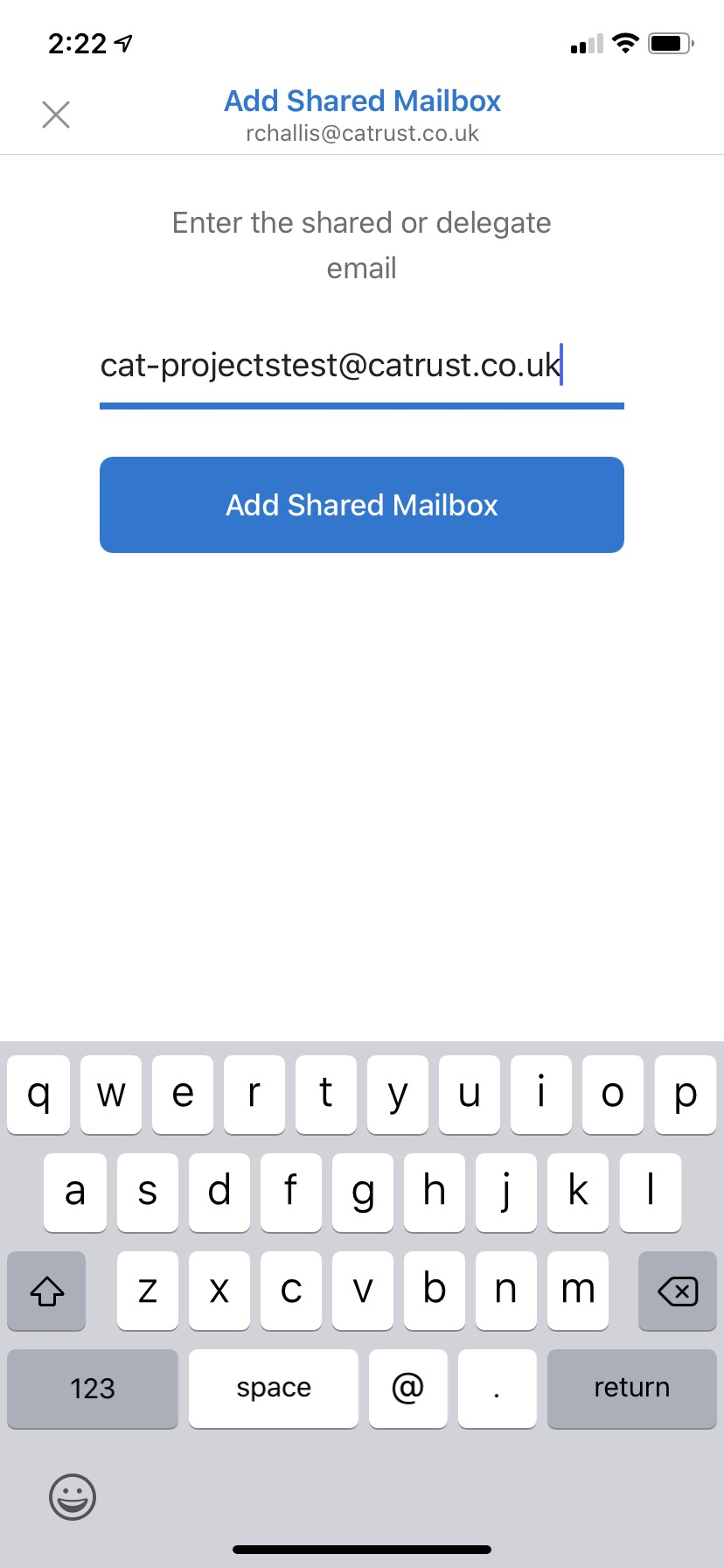
- Enter the full email address of the mailbox you wish to open. This is likely @yourschooladdress.org however if this does not work please check with your IT team.
- Allow a few minutes for the mailbox to add. Once the mailbox has added, it will be listed on the left side of the screen as shown below:
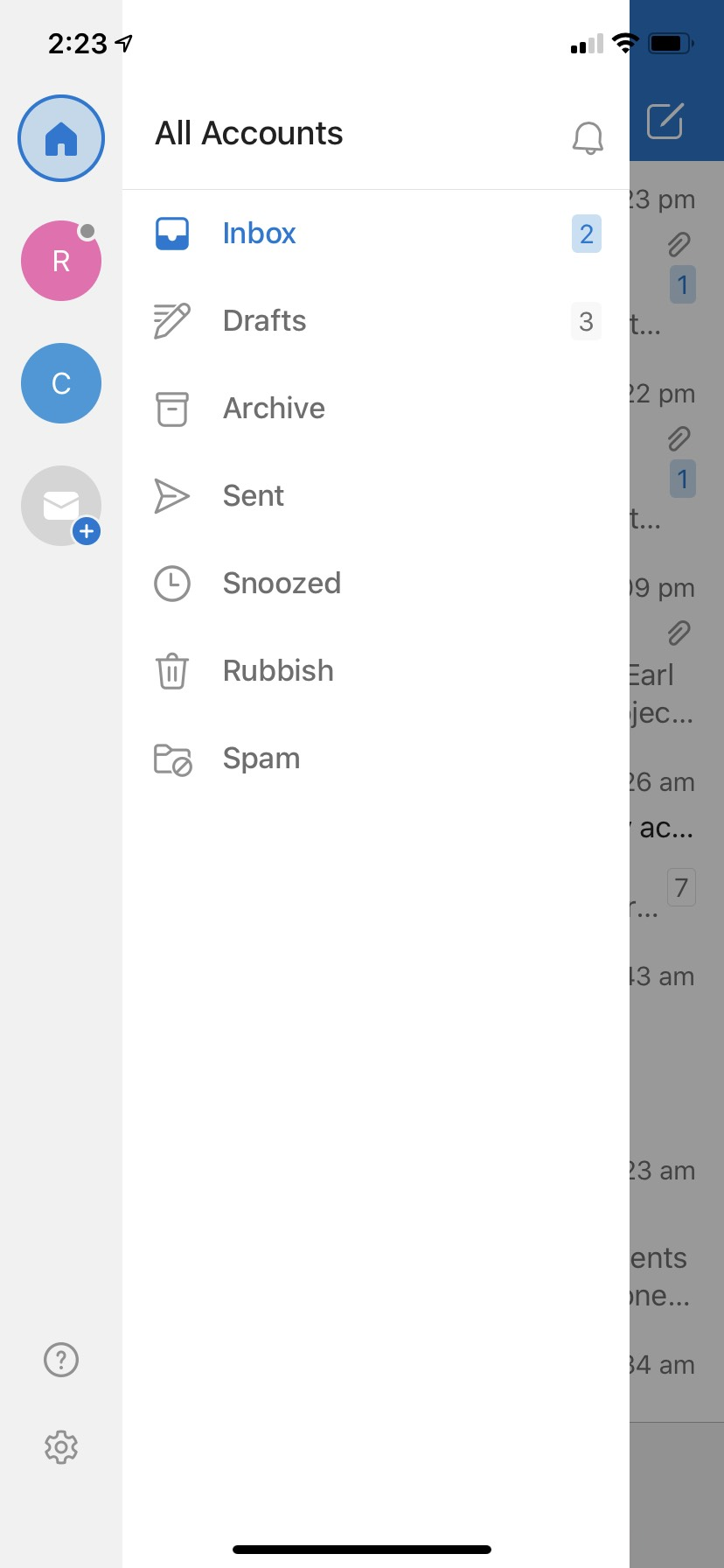
- Folders and email may take some time to appear depending on the size of the mailbox.
Comments
0 comments
Article is closed for comments.