
As of September 2021 it's not possible to add Public folders to the Outlook app on an iPad. The only way to view a public folder on these devices is to use the web app version, to do so follow these steps on a Windows or Apple computer first and then access it through the Web Based App:
- On a Windows or Apple computer open https://outlook.office.com/
- Login (if asked) with your normal Office 365 username and password
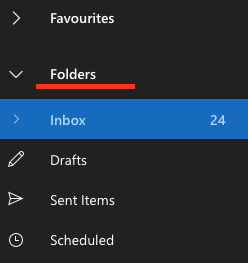
- In Outlook on the left towards the top you should see Folders, right click on it
- From the resulting menu select Add Public Folder to Favourites
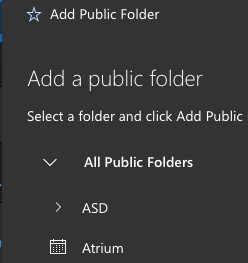
- Expand out to the public folder you want
- And click on it to select it
- At the top of that window is a button saying Add Public Folder, click on it
- After clicking on it you should see, just below the Add Public Folder text you clicked, a message saying 'The folder PublicFolderName was added in Calendar
- To now view that calendar click on the Calendar icon on the far left
- In the list of available calendars you now see, select to show, the calendar you have just added
- Now on an iPad go to https://outlook.office.com
- Log in with your Office 365 credentials as before
- Then on the left (as you have just done above) click on the calendar icon
- You should now see the public folder
Comments
0 comments
Please sign in to leave a comment.