
NOTE – IT will not be able to unlock your USB device if you have forgotten your password and/or lost the key, laptops have an encryption key stored on our network for us to recover, USB Devices do not.
Firstly make sure your device is inserted and any files that were opened from it have been closed.
- Press Start
- Type "bitlocker"
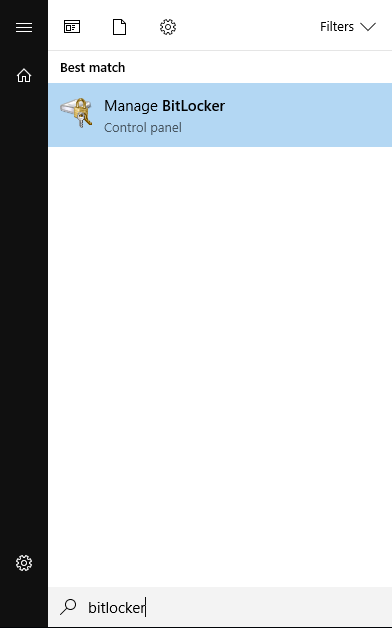
- Click on the "Manage Bitlocker" link
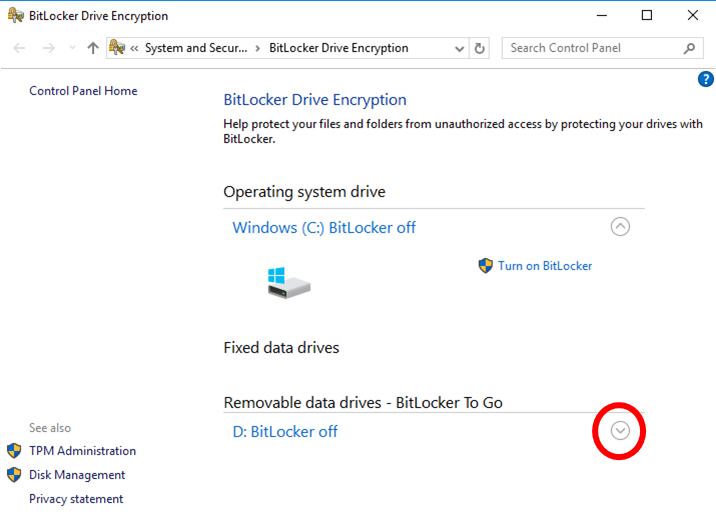
- In the new window, find the removable data drives - bitlocker to go section and expand it by clicking the white arrow
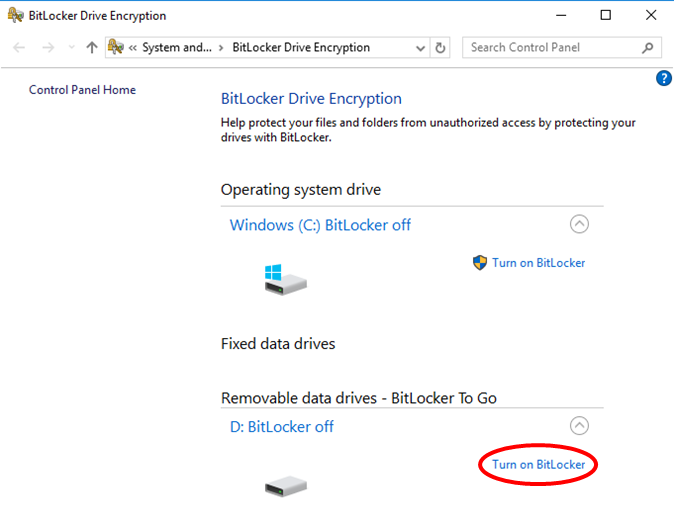
- Next to the device in the expanded section click "Turn on Bitlocker"
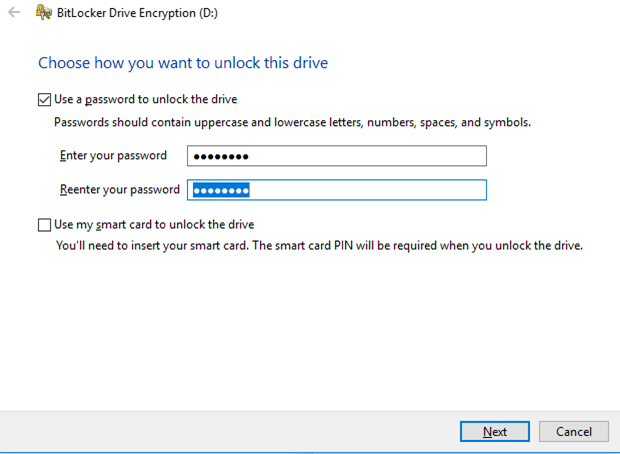
- A new window will appear and, after a moment, will present you with the option to lock your device with a password. Tick the box next to "Use a password to unlock the drive"
- Select a suitable password, the only requirement being that is eight characters (letters, numbers, spaces & symbols) or longer.
- Type your password into both boxes and click next
- You can now create a recovery key so in the event of you forgetting your password you can use the recovery key to get into your encrypted device. Click "Save to a file" and save the file to your documents (for obvious reasons, don't save the recovery key to the encrypted device). Also, please don't change the name of the text file either when you create it or in the future so that IT staff can find it in the event you forget where it's saved.
- After saving you'll be back at the "How do you want to back up your recovery key?" screen, click next.
- On the next screen toggle the "encrypt used disk space only" option then click next
- On the next screen toggle the "Compatibility mode" option then click next
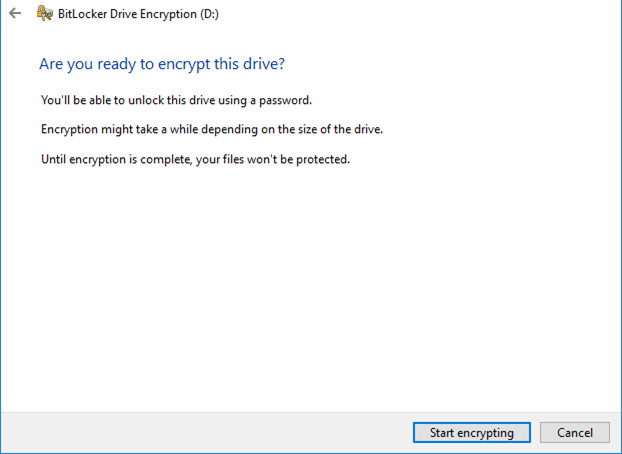
- On the next screen, confirm your options look like the screenshot below then click start encrypting
- After a few minutes, the encryption will complete. Click close.
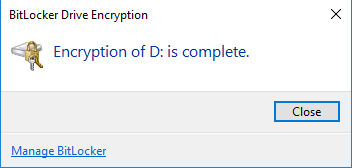
- Your device is now encrypted. Every time you plug your device into any computer you will be prompted for the password you created during Step 11 of this guide.
Comments
0 comments
Please sign in to leave a comment.