
Notes
- Ensure you have the correct email address.
- You may wish to send an email beforehand to explain to them what is about to happen.
- Their email address will be added to our online systems as a 'Guest' to allow online access to the content. Please ensure they are made aware of this and notify them of our privacy policy.
- After this process is complete, the recipient will receive an email with a link to the content.
- Once clicked, they will receive another email with a code which they'll need to enter to gain access to the content.
- Instructions for the requester can be found here, and can be shared with the requester.
Instructions
- Confirm with IT that you have the required permission to share content externally using authenticated means (a member of ExternalSharingEnabled)
- Place the content to be shared in a folder on your OneDrive. It can be a subfolder if you wish.
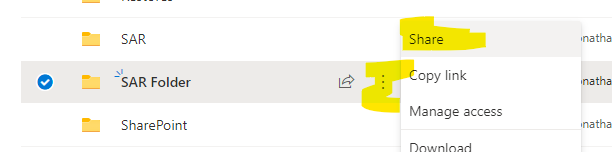
- Select that folder, click the 3 dots and select 'Share'
- Enter the email address of the SAR requester - double and triple check the email address -
- Press 'Enter'
- Ensure it says 'People you specify can view' - and the pencil icon is crossed out.
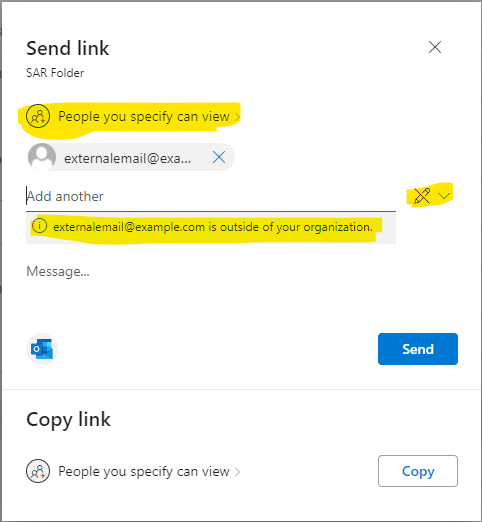
- A note will appear confirming that the address is external to the Cam Academy Trust
- Write a message if you would like to.
- Click send
Comments
0 comments
Please sign in to leave a comment.