
The extend option will allow you to display different applications from the same computer onto two separate displays (eg: powerpoint on a projector and a register on a monitor)
The duplicate option copies the output to both connected displays simultaneously, so whatever is one screen will be on the second display as well.
Windows 7 & Windows 10:
Method 1: By Shortcut (Win + P)
- Press the Windows logo key + P on your keyboard
- On Windows 7 the following menu will appear (see below), select your desired option

- On Windows 10 a menu will appear to the right of your screen (see below), select your desired option

Method 2: By Screen Resolution (Win 7) / Display Settings (Win 10)Menu
- Go to your desktop and right click in any empty space
- Select Screen Resolution if you are on Windows 7 or Display Settings if you are using Windows 10
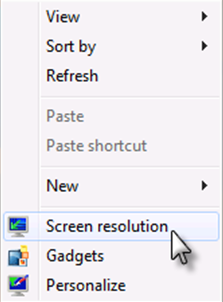
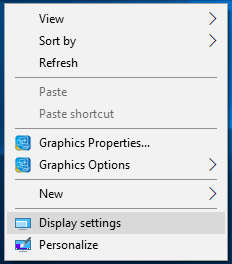
- To change between duplicated displays (projector and monitor show the same image) and extended mode (projector and monitor show different images) go to the multiple displays option and select the desired option. (The instructions as above apply to both Windows 7 and Windows 10, however, the menus look quite different)
- Windows 7:
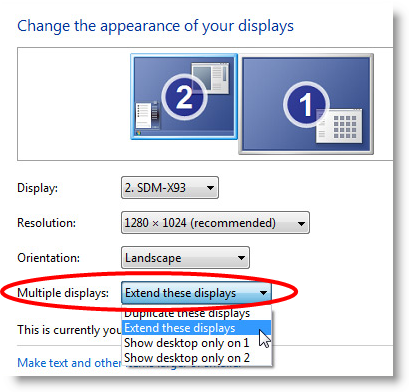
- Windows 10:

Comments
0 comments
Article is closed for comments.