
This article will explain how to change the default applications for file types in Windows 10, for example, changing PDFs from opening with Edge to opening with Adobe Reader / Chrome.
- In the search bar near the start button, search for default and select Default Apps

2. In this window you can change the default application for Email, Maps, Music and Video players, Photo viewer and web browser.
3. Select the current default app and then select your new, preferred default app
Change default apps for file type
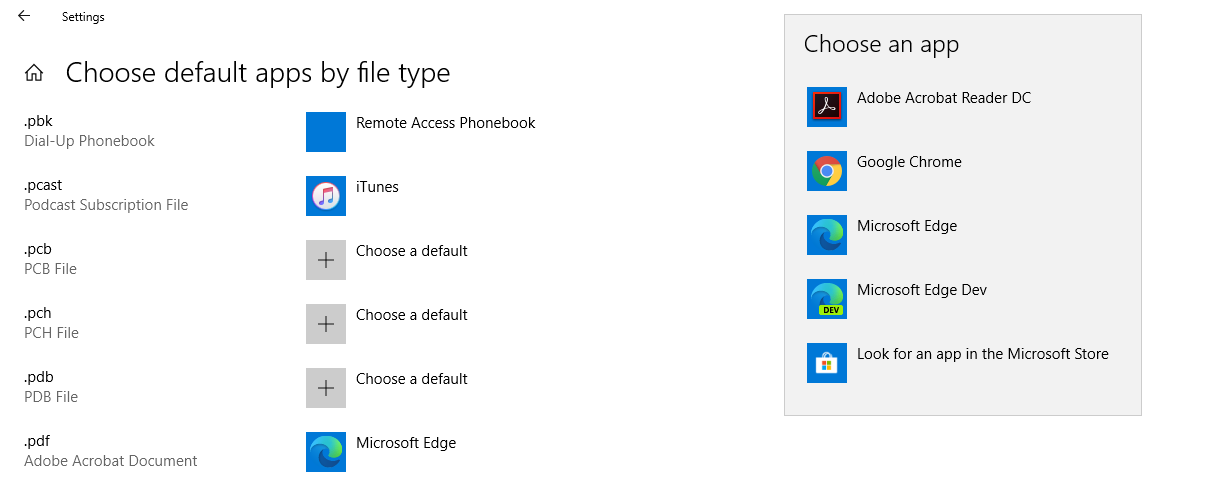
Sometimes though you may want to change the default application for something that isn't listed on the front page of the default apps window, for example a PDF. For types like these, select "Choose default apps by file type" located at the bottom of the window.
1. Scroll down until you find PDF (or whatever you wish to change). Once you've located it, to the right of the file format, an application will be listed. This is what the current default is. Select the application and then from the list that comes up, choose a new default application.
Comments
0 comments
Article is closed for comments.