
Warning
If you setup any quarantine rules it will be your responsibility to manage these. Any globally set rules will still apply, and will override your own rules if necessary.
Please also ensure you have read and understand the below KB article as well:
https://catrust.zendesk.com/hc/en-us/articles/6048227463453-Quarantine-Summary-Emails
How to setup and manage personal quarantine notification frequency
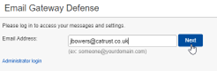
Go to https://ess.uk.barracudanetworks.com/ and login using your work email address, and press Next
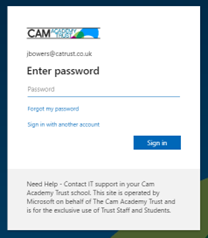
You’ll then be asked to sign in with your Microsoft Account (if working remotely, you may be asked to approve the sign in with MFA).
Once logged in, go to Settings > Quarantine Notification.
Under "Schedule Notification Intervals" Click on each "hour" square which will turn it blue to say that it's been activated for you. You can set this to every hour of every day by selecting all squares, or you can select just a few, or even unselect some to reduce the number of summary emails you get. When you're happy with your personal configuration, select "Save Changes"
You will only receive a notification if there are any emails to notify you about, meaning you won't get empty emails.
Please note: Any global policies that conflict with your quarantine rule will override your personal rule. This interface will warn you if this is the case. Please raise a ticket with support@catrust.co.uk if this happens.
Comments
0 comments
Please sign in to leave a comment.