
Outlook has a facility to encrypt messages so that only the intended recipient can open and read them, to send an email encrypted please follow the steps below, the email will be encrypted and if sent to a user using Outlook or Office 365 will allow them to open the attachment but not forward or download it:
- In Outlook start your new email
- Click on the Options menu in Outlook
- You'll either see an option called Encrypt OR Permissions (they do the same thing it's just dependent on your version of Outlook)
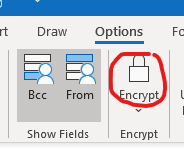
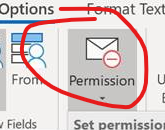
- Click on the Encrypt/Permissions button and select Encrypt Only
- Complete and send your email as normal
- The user at the other end, if they are not using Office 365 or Outlook.com will get an email that looks like this:
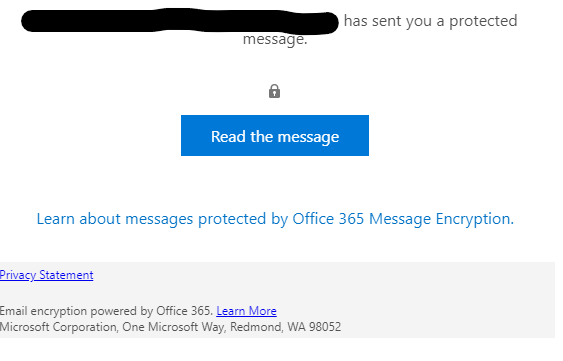
- When they click on the link it will take them to a website like this
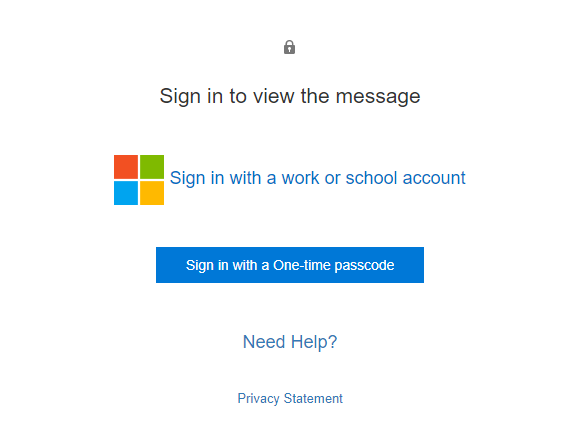
- If they have ANY office 365 account they can simply click on the sign in with a work or school account and login with their normal office 365 credentials, if they do not have office 365 they need to click on Sign In with One-time passcode
- This will securely send them a passcode to the email address you sent the original email to which they will then need to enter into a box that looks like this
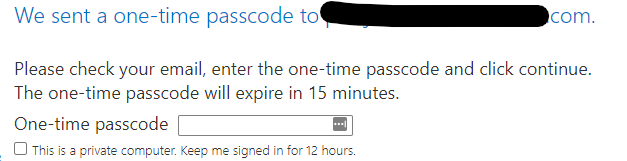
- This will create them a temporary account on our Office 365 tenant where we can track what they are doing with it and also ensure it is only being read by the intended recipient
Comments
0 comments
Please sign in to leave a comment.