
This issue started with Version 2202 (Build 14931.20604) first released to Semi-Annual Channel on July 12, 2022. A change was made to the service on July 26, 2022, to address the issue. The change will prevent new occurrences but does not retroactively fix broken profiles.
-
Right-click the Windows Start button, select Run, type Regedit, and then press the Enter key.
-
Navigate to this registry path: Computer\HKEY_CURRENT_USER\Software\Microsoft\Office\16.0\Outlook\Profiles
-
Locate the Outlook Profile name of the profile that the shared mailbox is not updating and select it.
-
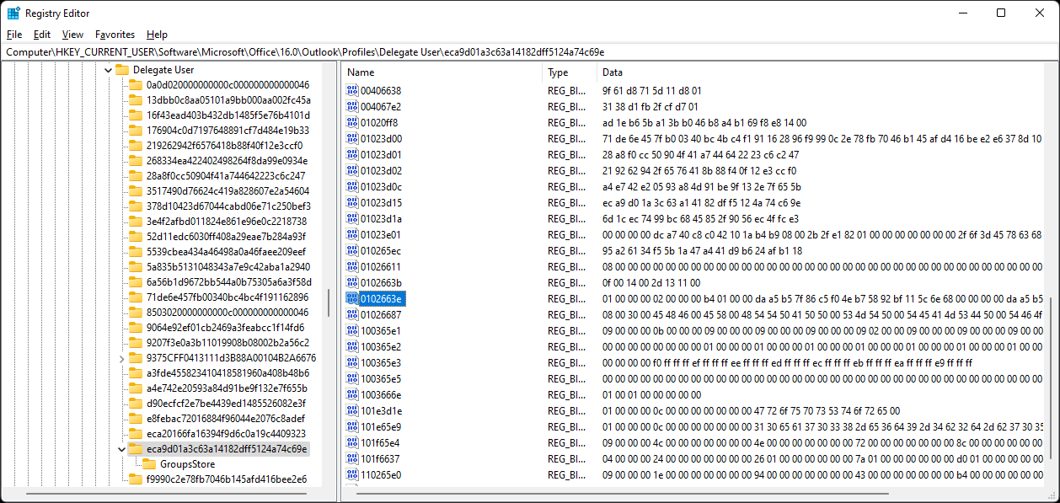
In Registry Editor choose Edit, Find, and search for registry key name: 0102663e
-
Locate this key in the profile where the parent key is just above the GroupStore as shown below.
-
Right-click on key name: 0102663e and select Delete.
-
Close Registry Editor and restart Outlook.
Verify the Shared Mailbox is updating. If it is updating correctly, you do not need to create a new Outlook profile.
Comments
0 comments
Please sign in to leave a comment.