
Outlook has a built in function for sending emails securely both externally and internally, the process to send is the same but what the recipient does at the other end is different.
Details here show how to send an email externally and what the user at the other end will see.
- Log into Outlook on web (portal.office.com) as you would normally do
- Start a new message
- Complete the email as normal but before clicking on send...
- Click the 3 dots menu along the same line and the 'Send' button, and choose 'Encrypt'
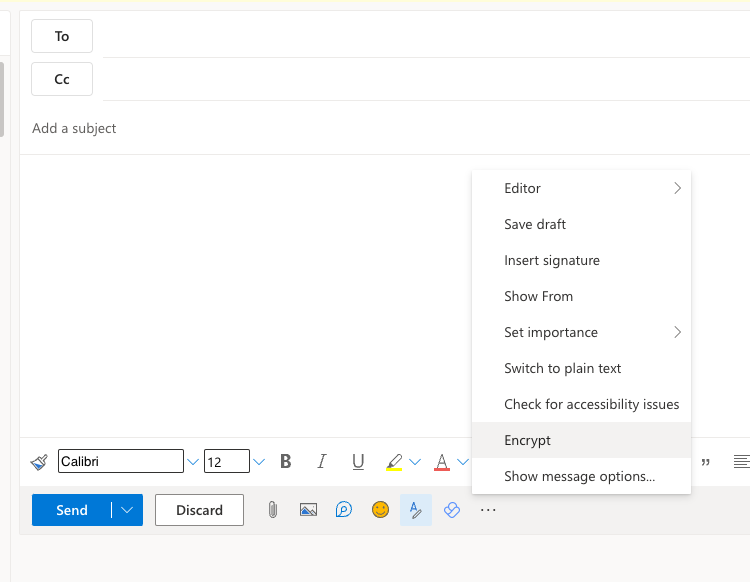
- You should see a message appear at the top of your email window

- OPTIONAL - The default settings are the ones for external emails, if the email is to be encrypted for INTERNAL emails only so nobody externally can read it, click on Change Permissions and select one of the following based on what you want the user to be able to do
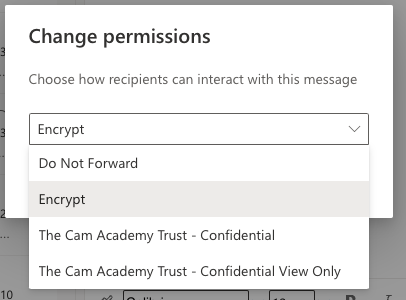
- Assuming you have sent it externally with the default encryption -
- Your email will go encrypted, so can't be intercepted or read by anybody other than the recipient
- The recipient will receive an email like this:

- Basically they just need to follow the instructions, so click on Read The Message
- This will open in a web browser with this message

- If they are an existing Microsoft 365 user (not necessarily one of our schools) they can click on Sign in with a work or school account and enter their school email address and password, this will then allow them to read it as they will not leave the confines of Office 365
- If they are not an Office 365 user thy need to click on 'Sign in with a One-Time Passcode'
- They will then get sent an email containing a code and the website will move on to a screen like this:

- They need to enter the code that has been emailed to them and click on Continue
- They will then be shown the email, including the attachment in a web browser, the attachments and the email will remain always encrypted and safe
Comments
0 comments
Please sign in to leave a comment.